Home › Select picks features by clicking or dragging a box (Shift adds, Ctrl removes). It takes only features that are drawn, in selectable layers: a definition query or a display filter hiding a feature keeps it out, and a click picks the feature drawn on top among the selectable layers. Select By Attributes takes a SQL clause and checks it as you type; Select By Location picks features that touch another layer's features or lie within a search distance of them (or, inverted, those that don't). Selected features draw in cyan and are highlighted in the attribute table, and the selection is synced both ways. Switch, clear or zoom to the selection, or make a new layer from it.
Select By Attributes and definition queries use SQL WHERE clauses:
pop_est > 100000000 AND continent = 'Asia'
name LIKE 'S%'
iso_a3 IN ('FRA', 'DEU', 'ITA')
gdp_md IS NULL
"OR" = 1          -- double quotes name a field, even a keyword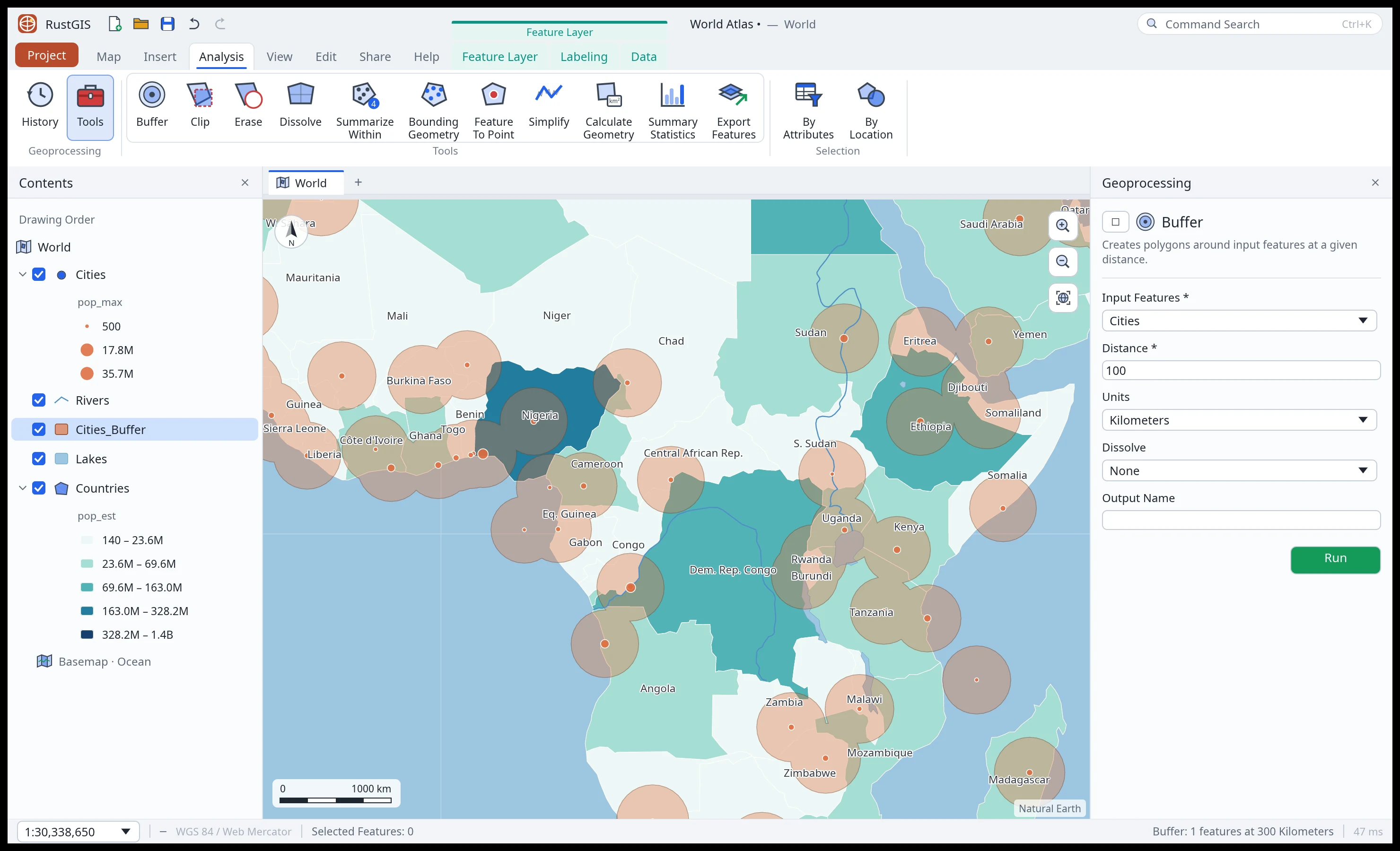
Open a tool from the Analyze tab's gallery, Analyze › Tools (the Tools pane,
which searches every tool) or Command Search. Fill in its parameters and click Run: the
result is added to the map, and the run is listed under Analyze › History. From the command
line or a script (gp.run), a built-in tool's parameter with a list of choices, such as Buffer's
units, takes one of them in any letter case ("meters" for Meters); any other value is an error
that names the choices (Buffer's units no longer take the abbreviations m, mi or metres).
The built-in tools:
| Tool | Toolbox |
|---|---|
| Buffer | Analysis › Proximity |
| Clip, Erase | Analysis › Extract / Overlay |
| Dissolve | Data Management › Generalization |
| Minimum Bounding Geometry, Feature To Point, XY Table To Point, Calculate Geometry Attributes | Data Management › Features |
| Simplify | Cartography › Generalization |
| Select Layer By Location / Attribute | Data Management › Layers and Table Views |
| Summarize Within, Summary Statistics | Analysis › Summarize / Statistics |
| Export Features | Conversion |
| IDW Interpolation | Analysis › Interpolation |
Tools honour the current selection: with features selected, only those are processed.
Buffer distances, and the distance of Select Layer By Location, are geodesic: every point of a buffer's edge is the given distance from the feature, measured on the Earth (a sphere of radius 6,371 km), wherever the feature is and however far it spans. Each feature is buffered in a projection centred on it, and a long line or a large polygon in stretches of a few hundred kilometres, so a 1000 km circle at 60°N reaches as far north as south.
IDW Interpolation works like the QGIS tool of the same name: every point weighs on every
cell by 1/distanceᴾ, where P is the distance coefficient (2 by default). Lines and polygons
contribute their vertices. Leave the extent empty to use the input's, or give it as
xmin,ymin,xmax,ymax in degrees. The result is a Float32 GeoTIFF layer.
The desktop app and the command line can also run the GeoLibre tool suite: over 1,000 tools from Whitebox and GeoLibre for terrain analysis (slope, aspect, hillshade, curvature), hydrology (fill depressions, flow direction and accumulation, watersheds), image processing, interpolation and vector work. They run on the map's layers and add their outputs as new layers.
The suite is an optional download, so RustGIS itself stays small: the GeoLibre runner, a
single geolibre program (about 20 MB to download). In the Tools pane, click
Install GeoLibre tools under GeoLibre tools: RustGIS downloads the latest runner for your
platform from the geolibre-rust releases,
checks it against its published SHA-256 checksum (which catches a corrupted download; the
release itself is trusted as when you download it by hand) and installs it in its data folder
(~/.local/share/rustgis/geolibre on Linux, ~/Library/Application Support/RustGIS/geolibre
on macOS, %LOCALAPPDATA%\RustGIS\geolibre on Windows). From the command line,
gp.installGeolibre does the same.
To remove it, click Uninstall beside GeoLibre at the top of the Tools pane, then
Confirm uninstall (gp.uninstallGeolibre from the command line): RustGIS deletes its
geolibre data folder. A runner you located yourself, or one on your PATH, is not deleted;
RustGIS goes on using it. You can install the tools again at any time. In the browser,
Remove unloads the tools and stops loading them when RustGIS starts.
To install it yourself instead, download the archive for your platform
(geolibre-<version>-<platform>.tar.gz, or .zip on Windows), unpack it anywhere, and click
Locate… to pick the geolibre program; RustGIS remembers it.
RustGIS also finds the runner without asking when it is next to the RustGIS program (or in a
geolibre folder beside it), on your PATH, or named by the RUSTGIS_GEOLIBRE environment
variable (the command line uses these). The tools then appear under GeoLibre in the Tools
pane and the Browser's toolboxes, grouped by the category and subcategory the runner gives
each tool (Conversion, Hydrology, LiDAR, Projection, Raster, Remote Sensing, Terrain, Vector,
then e.g. GeoLibre › Terrain › Derivatives). A runner too old to list subcategories groups
them by category only. Find Tools searches them.
- Raster inputs are passed as their own files; vector layers (or their selection) are written in the first raster input's coordinate system, or the UTM zone around the data, so distances and areas are in metres. Data spanning more than 40° of longitude stays in degrees.
- Tools that take several layers (a composite's bands, a mosaic's tiles) list them in order:
Add picks a layer, and ▲ ▼ change its place (the order of the bands, for a composite). From
the command line, name them separated by
;:"inputs":"red;green;blue". In the desktop app a file not open as a layer can be added too: type its path below the list and press Enter. - Raster outputs are kept inside the project, so they save and reopen with it. Text and table reports appear in the tool's messages.
- LiDAR and other inputs RustGIS doesn't open as layers take a file path, read like Add Data reads one. Outputs are written to a fresh scratch folder and loaded from there.
- Each run is a separate
geolibreprocess, so a tool that fails can't take RustGIS down. - From the command line:
gp.run={"tool":"geolibre:slope","params":{"input":"dem"}};gp.toolslists every tool's parameters,gp.geolibreshows the runner in use andgp.setGeolibre={"path":"…"}picks one.
In the web app, click Load GeoLibre tools in the Tools pane instead. RustGIS
loads geolibre-rust's WebAssembly runner (the geolibre-wasm package, from jsDelivr, about
25 MB the first time, then from the browser's cache) and the tools run in the page, in an
in-memory folder: nothing is uploaded. The web app remembers this and loads them again on your
next visit. The runner's code comes from jsDelivr, pinned to one geolibre-wasm release, the
same trust as installing that package. Tools that read files by path (LiDAR files, for instance) need the desktop app,
since a web page has no file system.
In the desktop app and on the command line, RustGIS waits while a tool runs, so a long run on a large raster or point cloud keeps the window busy until it finishes. In the web app the run is started in the background and the result is added when it ends, but the tool itself runs in the page, so the page is busy while it computes.
The Analyze tab's Workflows pane holds guided analyses. Where one needs points, it asks you to click them on the map:
| Workflow | What it does |
|---|---|
| Raster Functions | Slope, aspect, hillshade, NDVI, band math ((b4-b3)/(b4+b3)), thresholds, resampling |
| Function Editor | Chains raster functions, each on the previous output |
| Suitability Modeler | Scores rasters 1–10 and adds them with weights |
| Visibility Analysis | A viewshed from a point on an elevation raster |
| Exploratory 3D Analysis | A line of sight between two points, split into seen and hidden parts |
| Geostatistical Wizard | An IDW surface from point values |
| Network Analysis | The shortest (or cheapest, by a cost field) route over a line layer |
| Neighborhood Explorer | What lies within a distance of a point, with sums of numeric fields |
| Simulation | Random points in polygons (a fixed number, or from a field × rate) |
| Data Engineering | Counts, nulls, distinct values, min, max and mean of every field |
| Exploratory Analysis | Histograms and correlations of numeric fields |
| Embeddings | The features most like the selected one, by their numeric attributes |
| Data Interop | KML, GPX, CSV with WKT, GeoJSON or CSV |
Rasters these make are kept in the project. Environments limit tools to the map view, the full
extent or everywhere, and set the cell size of new rasters. ModelBuilder chains tools into
models (a parameter %1 is step 1's output), and New Model From History turns the
geoprocessing you've run into a model. The Script pane runs commands from text, one per line
(id {json}).
The Analyze tab's imagery groups open their tools in the Workflows pane:
- Ortho Mapping and Reality Mapping workspaces mosaic georeferenced images into an orthomosaic, or elevation rasters into a surface model that exports as a 3D mesh (OBJ).
- Georeference places a raster from control points (column, row, longitude, latitude) or stretches it over the map view.
- Change Detection (difference, ratio, percent), Spectral Analysis (every band at a pixel), Indices (NDVI, NDWI, SAVI, NBR, NDBI, EVI), Process (clip to the view, to a box, or to a polygon layer's selected or all polygons, with the cells outside them no-data; resample) and the Pixel Editor (set the pixels inside a polygon).
- Mosaic Rasters (
raster.mosaic) merges tiles of one grid, such as the 1 km tiles of a state elevation model, into one raster in their own coordinate system and cell size, optionally written to a GeoTIFF:{"inputs": ["dgm_1.tif", "dgm_2.tif", …], "path": "dem.tif"}. Inputs are layers or file paths; where they overlap, the first one with data wins. Tiles in different coordinate systems or cell sizes, or opened from an overview, are refused rather than quietly resampled, as are tiles whose cells don't line up; the mosaic has to fit in memory (120 million values: cells times bands). - Classification Wizard (unsupervised k-means) and Classification Tools (minimum distance from training polygons).
- Mensuration: distances along the surface, heights between two points, areas, and volumes above or below a base height, with a list of results.
Analyze › Deep Learning Tools trains a neural network (a multilayer perceptron) on the pixels under training polygons and classifies every pixel, adding a class raster with a confidence band and reporting the accuracy on held-back pixels. Trained models stay in the project; Share › Package › Deep Learning saves one as a package to apply in other projects. Analyze › Create Hosted Imagery cuts a raster into XYZ web map tiles (PNG, transparent outside the raster) with a TileJSON file and a viewer page.