Click any screenshot to view it full size.
 |
 |
 |
 |
 |
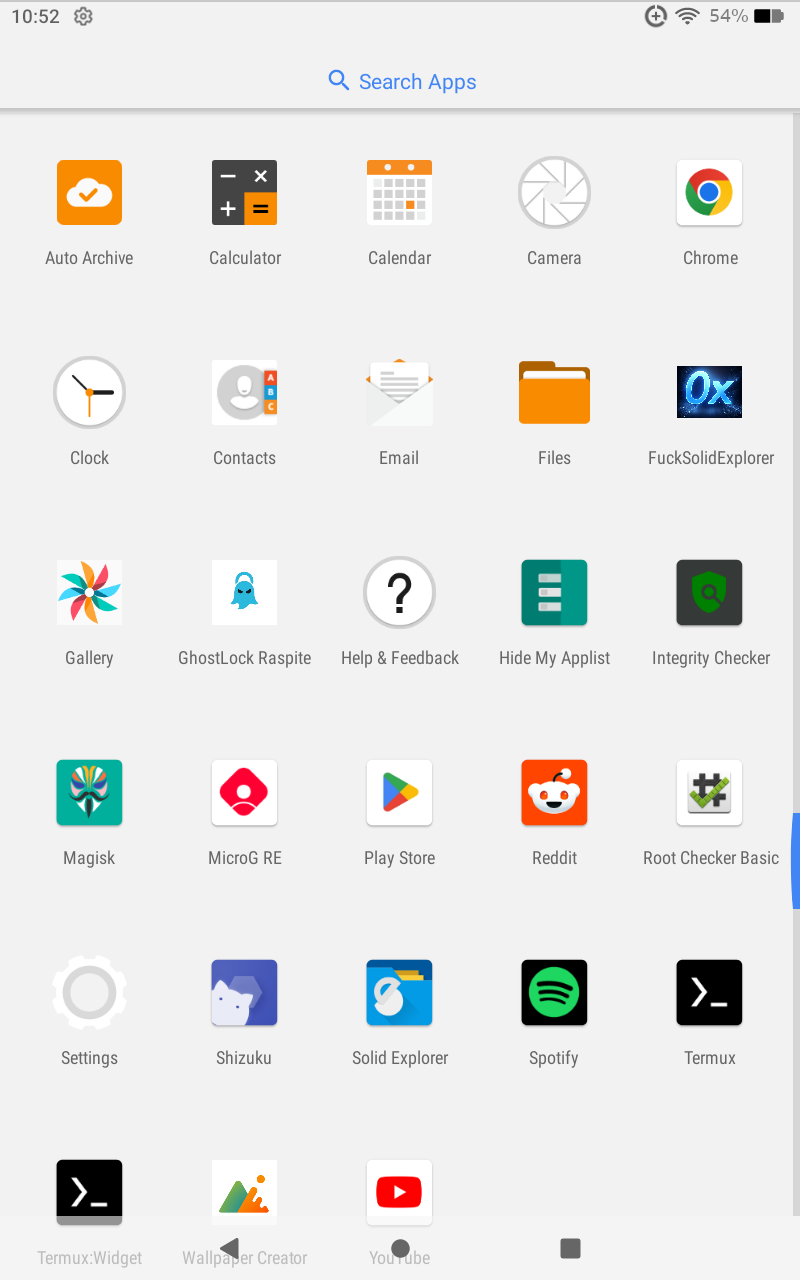 |
A device-specific Android helper app "GhostLock Raspite" and companion Linux "Root Helper Toolkit" for the Amazon Fire HD 8 (12th generation, KFRAWI, device codename raspite). The Android app provides a UI around the GhostLock temporary-root payload workflow and bootless Magisk start workflow, using Shizuku for privileged shell access. The companion Linux Root Helper toolbox brings together Linux-ported GhostLock and Magisk scripts, Fire Toolbox, root-shell shortcuts, Fire Launcher controls, and a userspace reboot option. I have really designed this project in two parts the "Linux Root Toolkit" used to Stop OTA Updates, debloat, disable or uninstall the Fire OS default apps, install 3rd party launchers, disable and enable the fire launcher, root with ghostlock and boot Magisk. Then once you are happy with how to device functions(like a normal android tablet) The companion Android App is Sizuku enabled and excutes an on device ghostlock and magisk root, the same payload as the "Linux Root Toolkit".
Device-specific project. The working setup documented here was tested on a Fire HD 8 12th Gen (
KFRAWI/raspite) running Fire OS 8.3.3.8. Do not assume it supports other Fire tablets, device variants, Fire OS releases, or firmware builds. The app's compatibility checks and included payloads are specific to the builds they were prepared for.
- What is this Project
- Device and firmware notes
- (Linux) Root Helper Toolbox
- (Fire tablet Root App) one-time setup
- (Fire tablet Root App)Start Shizuku without a computer
- (Fire tablet Root App)Run GhostLock and start Magisk
- Troubleshooting
- Build GhostLock Raspite from source on Debian
- Project configuration
- Safety and limitations
- Discloses and Sources
- Provides Root access, Root Manager, OTA update disabling with Fire Tool Box, 3rd Party launcher support, Google Play Store/Services.
- Connects to Shizuku and reports relevant connection/compatibility information.
- Provides the GhostLock temporary-root payload workflow.
- Includes the project's bootless Magisk start workflow and related controls.
- Includes device/build checks and payload-integrity checks where implemented by the app.
- Provides a reboot action.
- Has a companion Linux toolbox for running the Linux-ported GhostLock and Magisk workflows, opening root shells, managing the Fire Launcher, launching Fire Toolbox, and requesting a userspace reboot.
Temporary root is not the same thing as permanent boot-time root. If you follow the app's status messages and the workflow with the exact device/build you can also achieve root access on your Fire HD8 12th Generation. The project does not claim universal compatibility.
Known tested device:
| Item | Value |
|---|---|
| Tablet | Amazon Fire HD 8, 12th generation |
| Model | KFRAWI |
| Device codename | raspite |
| Tested Fire OS | 8.3.3.8 |
| CPU ABI | arm64-v8a |
The project's compatibility logic has referenced these build identifiers:
RS8336.3103N:0028656279428RS8337.3186N:0029461607044RS8338.3339N:0030132734852
Those identifiers are included here as project compatibility references, not a guarantee that every listed firmware has been independently tested. The confirmed repeated on-device test described by the project I'm on Fire OS 8.3.3.8. Do not flash images or use payloads intended for a different model/build.
The companion Fire HD 8 - Tool Launcher is a Linux-hosted toolbox for the KFRAWI / raspite project. The supplied ZIP contains the launcher and its bundled tools/scripts, including Fire Toolbox, the Linux-ported GhostLock workflow, and the Magisk install/start script. The scripts were ported to Linux by the project author; the underlying GhostLock payload work is credited in the sources section below.
- Open Fire tablet Settings and enable Developer Options. On Fire OS, this is normally done from Device Options → About Fire Tablet by tapping the serial-number entry repeatedly until developer options are enabled; menu wording can vary by Fire OS version.
- Open Developer Options and enable Android Bebugging Bridge.
- Connect a USB-C cable to your computer and back on the tablet a notification to Authorize the Computer for ADB should pop up, Authorize it.
- Download the included Linux Root Helper/toolbox ZIP.
- Requirments are
sudo apt install fuse libfuse2 adb fastboot 7zip- Extract the ZIP to a directory you can write to.
- Open a terminal in the extracted directory—the directory containing
launcher.sh. - Make the launcher executable and run it:
chmod +x launcher.sh
./launcher.sh
No additional setup command is required by the launcher itself. Read any prompts from the selected tool and make sure the tablet is connected and in the state required for that operation.
The launcher presents these options:
| Option | Action | Requirement / notes |
|---|---|---|
1 |
Root device (GhostLock) | Run the GhostLock temporary-root workflow for the supported device/build. |
2 |
Open root shell (GhostLock) | Requires GhostLock temporary root to have been obtained and still be available. |
3 |
Send / start bootless Magisk | Uses the bundled Magisk install/start workflow. Follow its prompts and requirements. |
4 |
Open root shell (Magisk) | Requires the Magisk root workflow to be active and working. |
5 |
Disable Fire Launcher | Requires Magisk root. Set up and test a replacement launcher first if you intend to use a third-party home app. |
6 |
Enable Fire Launcher | Requires Magisk root; re-enables the stock Fire OS launcher. |
7 |
Start Fire Toolbox | Opens the bundled Fire Toolbox workflow for tasks such as debloating and its OTA-related options. Review the selected operations carefully. |
8 |
Userspace reboot | Requests a userspace reboot; this is not the same as a full power-off or firmware flash. |
0 |
Exit | Closes the launcher. |
- Connect the Fire tablet to the Linux computer using the connection method required by the selected scripts.
- Select 1 to run GhostLock and obtain temporary root.
- If needed, select 2 to open the GhostLock root shell and perform the intended root-level operation.
- Select 3 to send/start bootless Magisk. Confirm the result before relying on Magisk root.
- Select 4 to open the Magisk root shell when required.
- Use 5 or 6 to disable or re-enable Fire Launcher only when Magisk root is available. If replacing the stock launcher, install and verify the alternative launcher before disabling Fire Launcher, and keep a recovery path available.
- Select 7 to open Fire Toolbox for its supported maintenance options. OTA-related controls can affect update behavior; understand the exact option and how to reverse it before applying it.
- Select 8 only when a userspace reboot is appropriate.
These options are conveniences around separate scripts/tools, not a guarantee that every action will work on every firmware. Follow the output from each tool and do not assume an operation succeeded just because it was selected. Root-dependent options require the relevant root method to be active.
Install these apps on the tablet:
- Shizuku — official download page: https://shizuku.rikka.app/download/ or official releases: https://github.com/RikkaApps/Shizuku/releases.
- Termux — install from one trusted source, such as the official Termux GitHub project: https://github.com/termux/termux-app#installation.
- Termux:Widget (optional, for a home-screen launcher) — https://github.com/termux/termux-widget or https://f-droid.org/en/packages/com.termux.widget/.
Important: Install Termux and Termux add-ons from the same distribution source. APKs signed by different sources may not be installable together as updates/add-ons.
- Open Fire tablet Settings and enable Developer Options. On Fire OS, this is normally done from Device Options → About Fire Tablet by tapping the serial-number entry repeatedly until developer options are enabled; menu wording can vary by Fire OS version.
- Open Developer Options and enable Wireless debugging.
- Keep Wireless debugging enabled while doing the pairing and startup steps below.
For this KFRAWI / raspite Fire OS setup, the method below is the only method the project I've found and repeatedly tested for starting Shizuku locally without a computer. Other Android versions and Shizuku releases may support other startup paths; this README does not claim that no other method could ever exist. On this tested Fire OS setup, the local Termux + ADB method has worked.
Pairing is normally a one-time step for a given Termux installation/authorization. If Termux is reinstalled, its data is cleared, or the pairing authorization is revoked, pair again. The pairing port and the ADB connection port are different values; do not confuse them.
Open Termux and run:
pkg update
pkg upgrade
pkg install android-tools-
Open Fire OS Settings → Developer Options → Wireless debugging.
-
Put Settings and Termux in split-screen so you can see the pairing code while entering commands.
-
In Wireless debugging, tap Pair device with pairing code. The screen shows an IP address, a pairing port, and a temporary pairing code.
-
In Termux, run the command below using the IP address and pairing port shown on the tablet. Replace the example endpoint with the displayed one:
adb pair <tablet-ip>:<pairing-port>
-
When Termux asks for the pairing code, look at the Wireless debugging screen and enter that code.
-
Confirm that ADB reports pairing successful.
Do not use the pairing port as the connection port in the next step. The connection port is shown on the main Wireless debugging screen and may change when Wireless debugging is toggled.
Copy and run this entire block in Termux. It creates ~/bin/start-shizuku:
mkdir -p "$HOME/bin"
cat > "$HOME/bin/start-shizuku" <<'SCRIPT'
#!/data/data/com.termux/files/usr/bin/bash
set -eu

PORT="$(getprop service.adb.tls.port 2>/dev/null | tr -d '\r')"

if ! [[ "$PORT" =~ ^[0-9]+$ ]] || [ "$PORT" -lt 1 ] || [ "$PORT" -gt 65535 ]; then
    echo "Automatic Wireless ADB port detection fail. Is Wireless ADB Authorised/Running?"
    echo "If Wireless ADB is running and you have no Temp Root..."
    read -r -p "Enter the Wireless debugging port: " PORT
fi

if ! [[ "$PORT" =~ ^[0-9]+$ ]] || [ "$PORT" -lt 1 ] || [ "$PORT" -gt 65535 ]; then
    echo "Invalid port number."
    exit 1
fi

SERIAL="127.0.0.1:$PORT"

echo "Using Wireless ADB port: $PORT"

adb start-server
adb connect "$SERIAL"

PACKAGE_PATH="$(adb -s "$SERIAL" shell pm path moe.shizuku.privileged.api 2>/dev/null | tr -d '\r' | head -n 1)"
APK_PATH="${PACKAGE_PATH#package:}"

if [ -z "$APK_PATH" ] || [ "$APK_PATH" = "$PACKAGE_PATH" ]; then
    echo "Could not locate Shizuku. Check the ADB connection and authorization."
    exit 1
fi

LIB="${APK_PATH%/base.apk}/lib/arm64/libshizuku.so"

echo "Starting Shizuku..."
adb -s "$SERIAL" shell "$LIB"
SCRIPT
chmod +x "$HOME/bin/start-shizuku"-
Make sure Wireless debugging is enabled.
-
In Termux, run:
"$HOME/bin/start-shizuku" -
If automatic port detection fails, the script prompts for the current Wireless debugging connection port. Find it on the main Wireless debugging screen and enter the number. Do not enter the pairing port.
-
A successful run ends with output similar to
shizuku_starter exit with 0. -
Open Shizuku and verify that its server is running.
On this Fire OS build, getprop service.adb.tls.port was readable in some states but empty without the project's temporary-root context. The script deliberately includes manual port entry as a fallback. This is expected; it does not mean the script is broken.
If you want to use Widgets and give Termux access to your regular android file system please do the following.
Settings → Search → "All files access" → All files access → Termux → Allow.
Settings → Apps & Notifications → See All Apps → Termux → Display Over Apps → Allow.
Thats it now copy the Shizuku start script to widgets folder.
After installing Termux:Widget from the same source as Termux, run:
mkdir -p ~/.shortcuts
cp ~/bin/start-shizuku ~/.shortcuts/Start-Shizuku
chmod +x ~/.shortcuts/Start-Shizuku
And:
cat > "$HOME/.shortcuts/Dev-Settings" <<'SCRIPT'
#!/data/data/com.termux/files/usr/bin/bash
am start -a android.settings.APPLICATION_DEVELOPMENT_SETTINGS
SCRIPT
chmod +x "$HOME/.shortcuts/Dev-Settings"
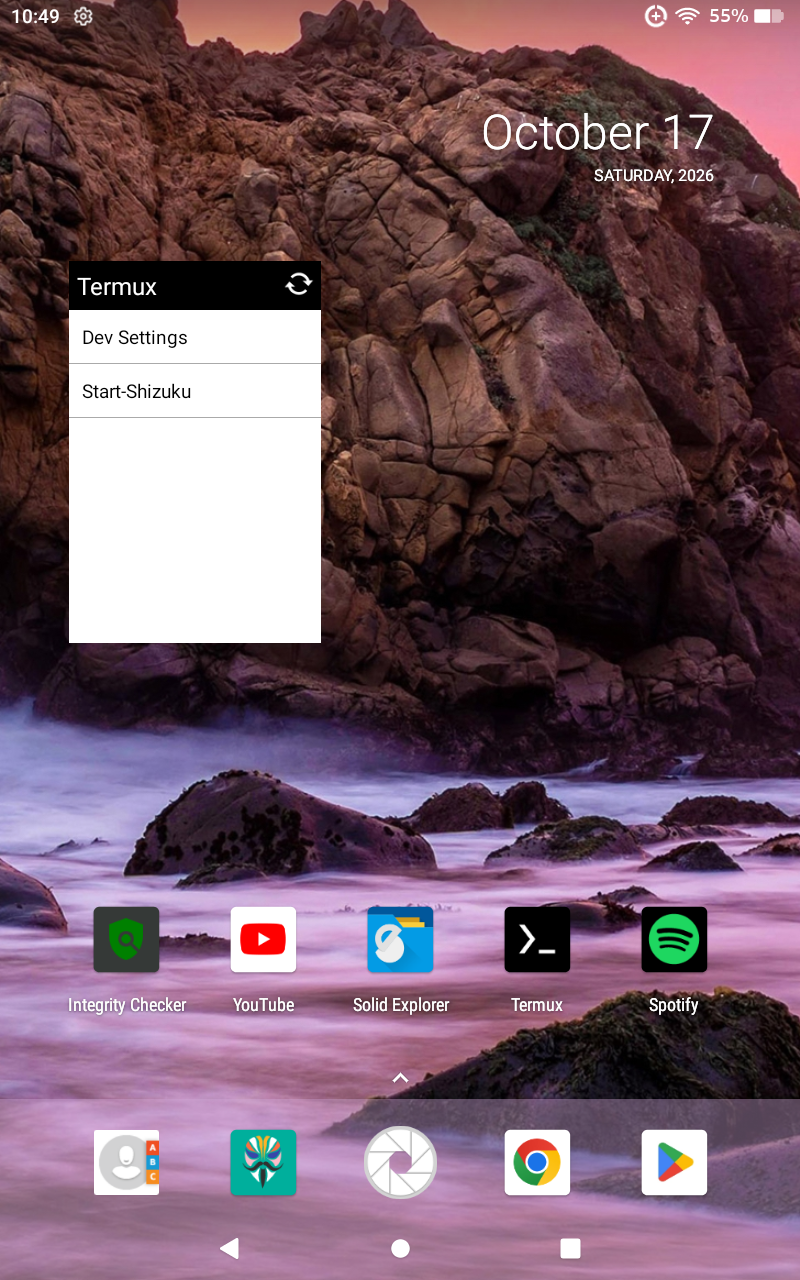
Then use the Fire OS home-screen widget picker to add a Termux:Widget widget and choose Dev-Settings or Start-Shizuku if prompted. Some Fire OS launchers may restrict standard Android widgets. If the widget cannot be added, run the command from Termux instead.
The script may prompt for the port. If launching it through a widget does not provide a visible interactive prompt, start it from Termux for that run, or use the widget only when automatic detection works.
Once Shizuku's server is running:
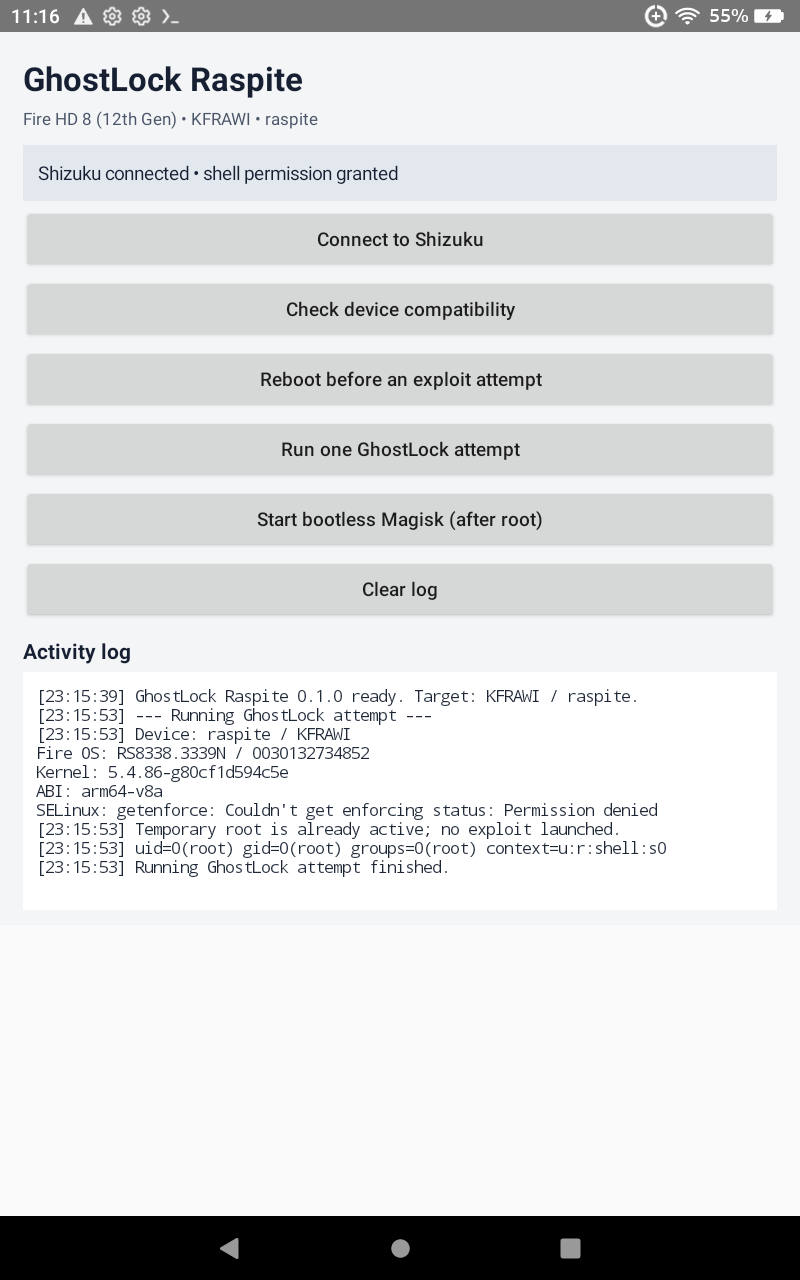
- Open GhostLock Raspite.
- Connect the app to Shizuku and approve the Shizuku permission request if shown.
- Run the app's compatibility/device checks and review the result before continuing.
- Run the GhostLock payload workflow and wait for the app to report its result. Do not assume temporary root succeeded unless the app confirms it.
- After temporary root is available, use the app's Magisk start workflow/script.
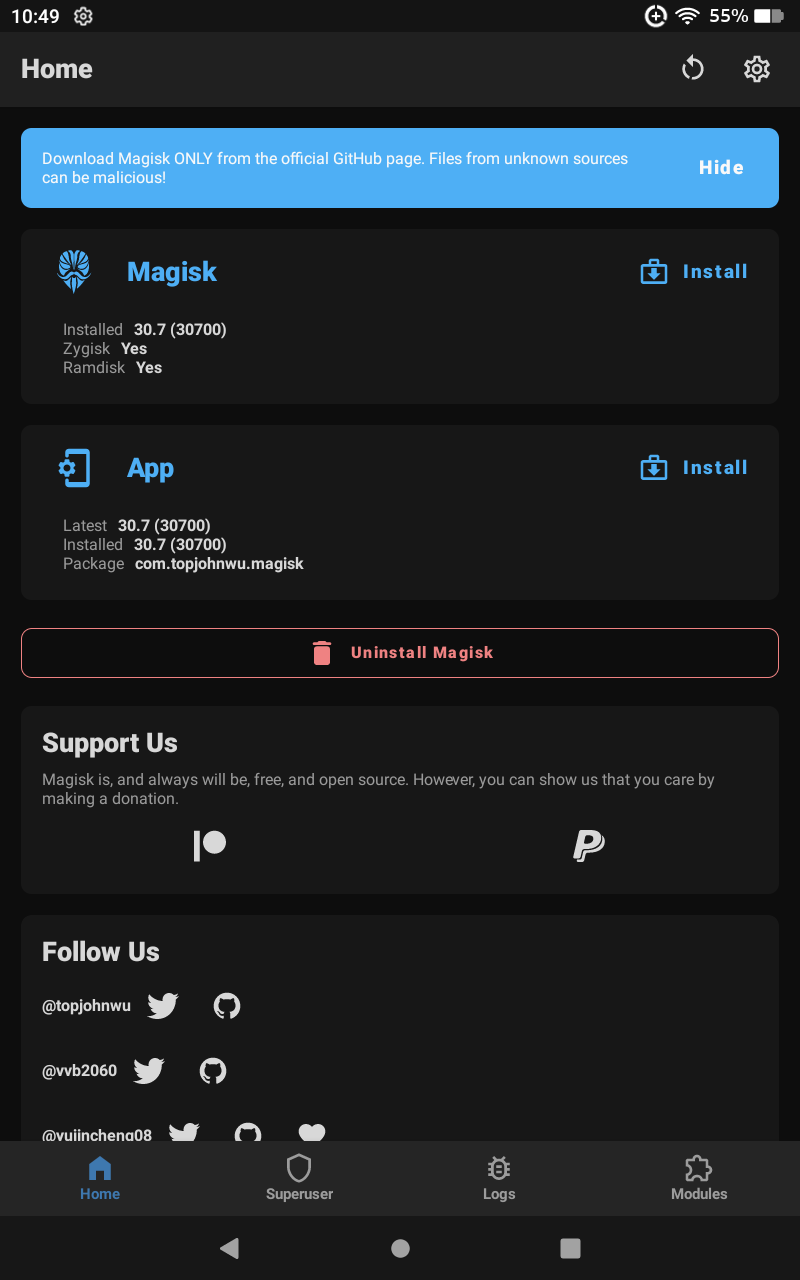
- Open Magisk and complete the desired module installation and superuser-access management.
I've had 10 and counting successful on-device runs of the GhostLock workflow and Magisk start script on the tested tablet/build. That is a test report for this setup, not a guarantee for other firmware or future updates.
This is expected when Termux cannot read the property. Enter the current connection port shown on the main Wireless debugging screen. The pairing port is not the same port.
- Verify Wireless debugging is still enabled.
- Check that the port is the current connection port.
- If Termux was reinstalled, its app data was cleared, or the authorization was revoked, repeat the pairing process.
- Confirm
adb devices -lshows the local device after connecting.
Open Shizuku and verify that it is installed. Confirm that ADB connected to the correct local port and is authorized. If Shizuku was updated/reinstalled, rerun the script; it discovers the current package APK path automatically.
This can indicate incompatible Termux packages or libraries. Update packages together, then reinstall Android tools:
pkg update
pkg upgrade
pkg reinstall android-tools
Install Termux and its add-ons from a consistent source. Avoid mixing F-Droid and GitHub APK builds of Termux components.
Check the Shizuku app first and confirm its server is running. Re-run start-shizuku if needed, then reopen GhostLock and reconnect. Do not change payload files just to troubleshoot a Shizuku connection failure.
These instructions reflect the build environment used for the working source project. The build was verified on Debian with JDK 21 and Gradle 8.9.
- Debian Linux (tested on Debian 13/Trixie).
- OpenJDK 21 (Gradle runs on JDK 21; the project compiles Java/Kotlin bytecode for JVM target 17).
- Android Studio or Android SDK Command-line Tools.
- Android SDK Platform 35 and Build-Tools 35.0.0.
- Android Platform-Tools (
adbis useful for device installation/debugging). - Gradle 8.9.
- Internet access for the first Gradle dependency resolution/build.
Official download/reference links:
- Android Studio: https://developer.android.com/studio
- Android SDK command-line tools: https://developer.android.com/tools
- Gradle 8.9 release notes: https://docs.gradle.org/8.9/release-notes.html
- Gradle distributions: https://services.gradle.org/distributions/gradle-8.9-bin.zip
- Shizuku releases/reference: https://github.com/RikkaApps/Shizuku/releases
- Termux installation (for device use, not desktop building): https://github.com/termux/termux-app#installation
sudo apt update
sudo apt install openjdk-21-jdk unzip wget
java -version
The tested Java path was:
/usr/lib/jvm/java-21-openjdk-amd64
Install Android Studio from the official Android developer site, launch it, and use SDK Manager to install:
- Android SDK Platform 35 (
platforms;android-35) - Android SDK Build-Tools 35.0.0 (
build-tools;35.0.0) - Android SDK Platform-Tools (
platform-tools) - Android SDK Command-line Tools (latest), if using
sdkmanager
The tested SDK directory was:
/home/joseph/Android/Sdk
For another user or computer, use the SDK directory actually installed on that system. If sdkmanager is available, the packages can be installed from a terminal like this (adjust ANDROID_HOME if needed):
export ANDROID_HOME="$HOME/Android/Sdk"
export PATH="$ANDROID_HOME/platform-tools:$ANDROID_HOME/cmdline-tools/latest/bin:$PATH"
sdkmanager --sdk_root="$ANDROID_HOME" --licenses
sdkmanager --sdk_root="$ANDROID_HOME" \
  "platform-tools" \
  "platforms;android-35" \
  "build-tools;35.0.0"
If Android Studio installed the SDK in a different location, substitute that path in the commands and in local.properties below.
This project build environment used a standalone Gradle distribution rather than a checked-in Gradle wrapper. The tested location was $HOME/Downloads/gradle-tools/gradle-8.9.
mkdir -p "$HOME/Downloads/gradle-tools"
wget https://services.gradle.org/distributions/gradle-8.9-bin.zip \
  -O "$HOME/Downloads/gradle-tools/gradle-8.9-bin.zip"
unzip -o "$HOME/Downloads/gradle-tools/gradle-8.9-bin.zip" \
  -d "$HOME/Downloads/gradle-tools"
"$HOME/Downloads/gradle-tools/gradle-8.9/bin/gradle" --versionOpen the project root in Android Studio, or use the terminal. The project root contains the Gradle settings/build files and the app/ module.
The tested source location was:
/home/joseph/Downloads/GhostLockRaspiteApp-source/GhostLockRaspiteApp
Set the SDK path in local.properties at the project root. This file is machine-specific; use the real SDK path for your computer:
cd "$HOME/Downloads/GhostLockRaspiteApp-source/GhostLockRaspiteApp"
printf 'sdk.dir=%s\n' "$HOME/Android/Sdk" > local.properties
Do not copy the example absolute path blindly to a different machine. If the source archive was extracted elsewhere, cd to that extracted project root first.
Run this from the project root:
export JAVA_HOME=/usr/lib/jvm/java-21-openjdk-amd64
export ANDROID_HOME="$HOME/Android/Sdk"
export PATH="$JAVA_HOME/bin:$HOME/Downloads/gradle-tools/gradle-8.9/bin:$ANDROID_HOME/platform-tools:$PATH"
cd "$HOME/Downloads/GhostLockRaspiteApp-source/GhostLockRaspiteApp"
gradle assembleDebug
A successful build ends with BUILD SUCCESSFUL. The APK is created at:
app/build/outputs/apk/debug/app-debug.apk
To copy it to a convenient filename:
cp app/build/outputs/apk/debug/app-debug.apk "$HOME/Downloads/GhostLock-Raspite.apk"Transfer the APK to the tablet and install it. To update an existing installation while preserving app data, keep the same application ID and sign with the same signing key; debug builds created on another machine may use a different debug key and therefore may not install as an update over the existing APK. If Android reports a signature conflict, uninstalling may remove app data, so export/record anything important first.
The working project setup used these versions/settings:
| Component | Setting |
|---|---|
| Android Gradle Plugin | 8.7.3 |
| Kotlin Gradle plugin | 2.0.21 |
| Gradle distribution | 8.9 |
| Java used to run Gradle | JDK 21 |
| Java/Kotlin bytecode target | JVM 17 |
| Android compile SDK | 35 |
| Android minimum SDK | 24 |
| Android target SDK | 32 |
| Shizuku client library dependency | 12.2.0 |
| Device ABI expected by the Shizuku starter path | arm64-v8a |
The Shizuku library dependency version used at build time is not necessarily the same as the version of the Shizuku manager app installed on the tablet. The startup script derives the installed Shizuku APK path at runtime and then calls the native libshizuku.so starter from its lib/arm64/ directory.
If you change plugin, SDK, dependency, or target versions, rebuild and retest on the actual supported tablet. Do not assume a successful compile alone proves the temporary-root or Magisk workflow still works.
- This project uses device/build-specific temporary-root techniques. They may stop working after a firmware update.
- Use only on a device you own or are authorized to administer.
- Root access and modules can damage the installation, weaken security, or cause boot problems. Understand each module before installing it and keep a recovery plan.
- Disabling the stock Fire Launcher can leave the device inconvenient to navigate if a replacement launcher is not installed or fails to start. Test the replacement first and retain a recovery route.
- Fire Toolbox debloat or OTA-related options can change device behavior. Read each operation's description and make sure you understand how to reverse it before proceeding.
- A successful build is not proof that payload execution will succeed on every firmware.
- Preserve the original payloads and scripts when making UI-only changes such as launcher icons or README edits.
- This project is community/personal tooling and is provided without a guarantee of compatibility or fitness for a particular purpose.
I am in no way responsible for creating these payloads... Everything i used PAYLOAD wise is from this XDA forum so credied goes to the users from.https://xdaforums.com/t/root-amazon-fire-hd-8-2022-12th-gen.4801332/
all of the likned .zip's and files are windows based on XDA, so if your a windows user and you just want GhostLock temp root have fun. if you want full Magisk SU Manager and Module installer you're going to have to use my included releases. Either "Linux Root Helper" or the "Ghostlock Raspite" Android Application with the above instruction. https://xdaforums.com/attachments/ghostlock-raspite-nonplus-kfrawi-8-3-3-6-8-3-3-8-zip.6395170/
https://xdaforums.com/t/windows-linux-tool-fire-toolbox-v45-1.3889604/ FTB_V16.1_AppImage.7z
https://xdaforums.com/attachments/start-bootless-magisk-raspite-8-3-3-8-sh.6395186/
All of the included scripts were ported to Linux by me, FireToolBox is supplied from XDA.