Repository navigation
Windows UI redesign: Fluent Inspector design and phased implementation #110
Description

한국어 — 실제 화면을 보며 작은 작업부터 결정하기
기존 구조 순서도에 더해 각 검토 작업에 실제 UI 형태의 화면 시안을 첨부했습니다. 의미별 작업은 총 19개입니다. #111–#115 작업 묶음 아래 새 개별 이슈 18개와 기존의 선택적 배치 후속 작업 #116입니다. 큰 작업 묶음 전체를 한 번에 구현하지 않습니다.
#111 전체가 아니라 #117(한글·영문 글꼴)부터 시작합니다. 화면 하나와 해당 질문을 검토하고 합의를 기록한 뒤 그 작업을 구현·검증하고 다음 작업을 논의합니다. 모든 작업은 논의 대기 상태입니다. 목업을 조작했다고 승인되는 것은 아닙니다.
| 순서·개별 작업 | 관리용 작업 묶음 | 화면·작업 이슈 |
|---|---|---|
| 1. 한글·영문 UI 글꼴 통일 | #111 | #117 |
| 2. 이미지 픽셀을 바꾸지 않는 일관된 테마 | #111 | #118 |
| 3. 명령의 사용 가능 여부와 조작 상태 통일 | #111 | #119 |
| 4. Viewer 명령 표시줄과 상태 표시줄 정리 | #112 | #120 |
| 5. Browse의 상위 폴더·드라이브 이동을 눈에 보이게 표시 | #112 | #121 |
| 6. Gallery 폴더명을 줄바꿈한 뒤 마지막 줄만 … 처리 | #112 | #122 |
| 7. 선택 파일과 적용 가능한 메뉴 명령을 명확하게 표시 | #112 | #123 |
| 8. Viewer Info를 File/Input/Display/Pixel로 구성 | #113 | #124 |
| 9. RAW 입력에만 RAW 해석 조작 표시 | #113 | #125 |
| 10. 영상·시퀀스에만 간결한 재생·프레임 조작 표시 | #113 | #126 |
| 11. 휴지통 이동 확인과 실제 작업 결과를 안전하게 표시 | #113 | #127 |
| 12. 입력 맥락에 맞는 단축키와 접근 가능한 포커스 유지 | #113 | #128 |
| 13. Comparator 입력 역할과 파일명 명확화 | #114 | #129 |
| 14. 실제 측정 범위·값·계산 상태 표시 | #114 | #130 |
| 15. 시퀀스 분석 그래프를 맥락에 맞게 정리 | #114 | #131 |
| 16. 실제 Windows 배치·DPI·테마·접근성 입력 검증 | #115 | #132 |
| 17. 이미지 안정성·성능·GPU 리소스 재생성 검증 | #115 | #133 |
| 18. 사용자 문서 갱신과 릴리즈 준비 상태 평가 | #115 | #134 |
| 19. 입력 4개 2×2 / 1×4 배치 — 별도 후속 작업 | #110 | #116 |
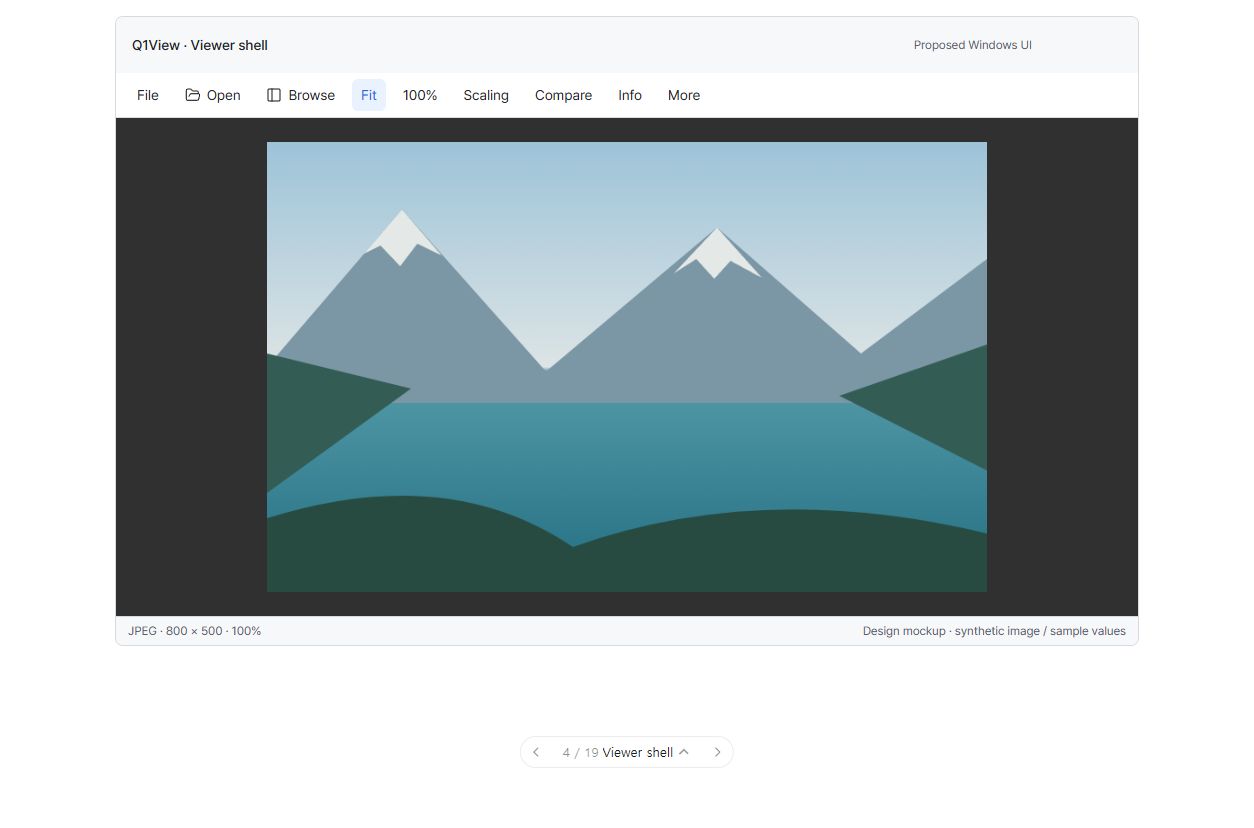
Viewer 화면 맥락
Comparator 화면 맥락
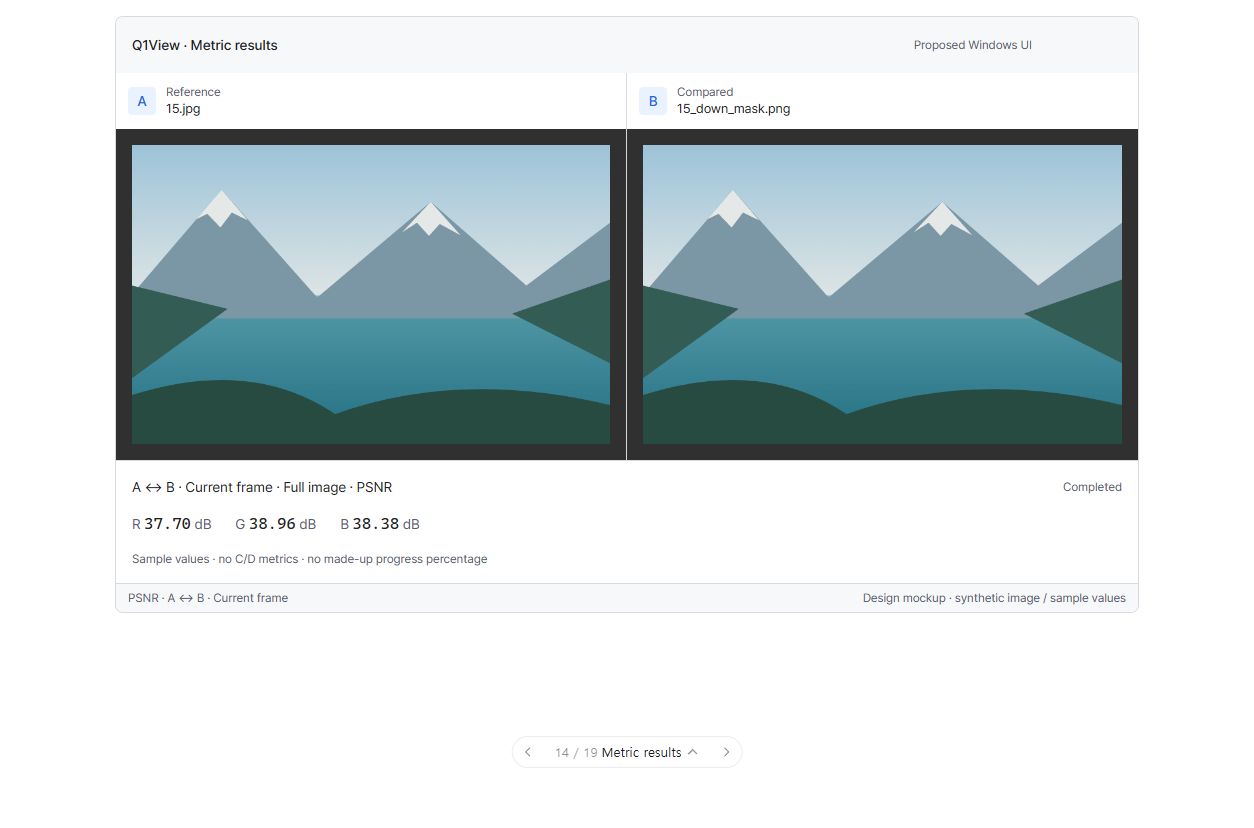
합성 이미지와 예시 수치로 만든 UI 설명 그림입니다. 구현된 Windows 앱 스크린샷이나 현재 빌드의 실제 변경 전·후 캡처가 아닙니다. 각 개별 이슈에 좁은 변경 범위와 유지할 동작을 명시합니다. 검증 작업의 그림은 검사 대상을 나타낼 뿐 새 UI나 검사 성공 결과가 아닙니다.
작업 기준: 화면, 합의한 결정, 범위, 구현·검증 증거는 원격 GitHub 개별 이슈를 기준으로 합니다. 로컬 Markdown은 보조 설계 참고 자료이며 관련 합의를 함께 반영하되 별도의 승인 기록으로 경쟁시키지 않습니다. 채팅이나 이슈 댓글에서 논의한 다음 구현 전에 해당 이슈 본문에 결론을 기록합니다.
이미지와 수정 가능한 소스는 문서 전용 브랜치에 있습니다. 이 계획 작업은 앱 코드를 바꾸거나 master 병합·릴리즈를 승인하지 않습니다. 아래 상세 명세가 공통 설계 규칙입니다.
시각적 설명과 논의
각 단계에 시각 설명과 질문을 제공합니다. 구현 전에 하나씩 검토합니다. 그림은 제안이지 앱이 이미 바뀌었다는 증거가 아닙니다.
아래 도식은 구조·동작을 설명하며 정확한 픽셀 배치·글꼴 렌더링이나 구현된 Windows 앱 스크린샷이 아닙니다.
flowchart TD
  FIRST["#117 한글·영문 글꼴부터 시작"] --> REVIEW["그림과 해당 작업 질문 논의"]
  REVIEW --> AGREED{"해당 작업 설계에 합의했는가?"}
  AGREED -- "아직" --> REVISE["그림·명세 수정"]
  REVISE --> REVIEW
  AGREED -- "예" --> IMPLEMENT["작업 전용 브랜치에서 구현"]
  IMPLEMENT --> VERIFY["빌드·관련 실제 작업 흐름 검증"]
  VERIFY --> PASS{"검사 통과?"}
  PASS -- "아니요" --> FIX["회귀 수정·재검사"]
  FIX --> VERIFY
  PASS -- "예" --> RECORD["증거 기록 후 다음 작업 논의"]
  RECORD --> NEXT["#111–#115 안의 개별 작업"]
  NEXT -. "별도 후속 작업; 최초 릴리즈 필수 조건 아님" .-> LATER["#116 다중 행 비교"]
기존 단계 전체의 논의 질문 — 참고
- Windows UI redesign: Unify Korean/English UI typography #117 글꼴부터 논의합니다. 계획이 등록됐다는 이유로 외관 선택이 승인됐다고 가정하지 않습니다.
- 각 단계의 선택·변경 합의를 구현 전에 기록합니다. 완료 판단과 릴리즈 승인은 별도입니다.
참고 자료 상태: 위 개별 작업의 질문을 승인 기준으로 사용합니다. 단계 전체의 참고 자료는 단일 구현 작업이 아닙니다.
해결하려는 문제
Q1View Windows Viewer와 Comparator는 정확한 이미지·영상·RAW 검사 흐름을 잃지 않으면서 일관된 시각적 우선순위가 필요합니다. 최근 Pretendard, 문자 중심 폴더 카드, 폴더명 여러 줄 표시, 다중 선택, 드라이브 루트 탐색, 안정적인 서랍 전환을 도입했습니다. 재설계는 이 장점을 사진 라이브러리나 대시보드 UI로 대체하지 않고 하나로 정돈해야 합니다.
제안: Fluent Inspector
차분하고 콘텐츠 중심인 Windows 작업 화면입니다. 명령을 쉽게 찾고 기술 정보를 읽기 쉽게 만듭니다. 고급스러움은 일관된 글꼴·정렬·절제된 색·예측 가능한 동작에서 얻습니다. 승인된 Bright Sky Q1 프로그램 아이콘은 유지합니다.
범위: Windows MFC Viewer와 Comparator만 대상입니다. Qt viewer 재설계, 렌더링·측정 알고리즘 변경, 새 UI 프레임워크 이전은 이 이슈에 포함하지 않습니다.
설계 기준: 2026-10-03에 검토한 master 커밋 7b8d50f57eb0738d85d73aeba86c05f94120a4a9 / v2.7.26입니다. 실제 구현 브랜치는 최신 origin/master에서 시작하며 이 과거 기준이 여전히 최신이라고 가정하지 않습니다.
단계별 진행
작은 변경을 완료·검증한 뒤 다음 단계로 갑니다. 외관 변경에 무관한 디코딩·비교 엔진 작업을 섞지 않습니다.
최초 재설계·릴리즈 준비 범위
- Windows UI redesign — Foundation epic: three focused jobs #111 — 1단계: 공통 색상·글꼴·간격 규칙, DPI/테마 서비스, 명령 정의.
- Windows UI redesign — Viewer workspace/Browse epic: four focused jobs #112 — 2단계: Viewer 명령·상태 줄과 Browse 탐색·선택.
- Windows UI redesign — Viewer inspection/input/feedback epic: five focused jobs #113 — 3단계: Viewer Info, 입력별 조작, 대화상자·피드백, 키보드·접근성 연동.
- Windows UI redesign — Comparator presentation epic: three focused jobs #114 — 4단계: Comparator 헤더, A/B 범위, 측정값 표시, 분석 상태.
- Windows UI redesign — Verification/readiness epic: three focused jobs #115 — 5단계: 앱 전체 회귀 검증, 문서, 릴리즈 준비 검토.
별도의 구조 후속 작업
- Windows UI redesign — Phase 6 follow-up: Comparator 2×2 and multi-row layouts #116 — 6단계: Comparator 다중 행, 2×2 및 명시적 1×4 호환 배치.
6단계는 최초 재설계 릴리즈의 선행 조건이 아닙니다. 이 상위 이슈는 전체 계획을 추적하므로 최초 릴리즈 뒤에도 열려 있을 수 있습니다. 임의 비교 쌍, Swipe/Blink/Heatmap, 새 측정 알고리즘은 별도 제안이 필요합니다.
관리 단계의 순서는 #111 → #112 → #113 → #114 → #115입니다. 실제로는 각 묶음 아래 개별 이슈의 선행 작업을 따라 하나씩 진행합니다. #116은 핵심 검증 뒤 별도로 수행할 구조 후속 작업입니다.
구현 이슈마다 브랜치/PR, 완료한 검사, 알려진 한계, 새 회귀를 기록합니다. 목업이나 빌드 성공만으로 이슈를 닫지 않습니다.
상세 시각 설계
1. 미적 방향
- Pretendard를 유지합니다. 이미 승인된 글꼴을 바꾸기보다 역할별 크기·굵기·줄 간격·DPI 처리·정렬을 개선합니다.
- 불투명하고 중립적인 작업 표면을 사용합니다. 과도한 카드 테두리·큰 제목·대시보드 패널·색 장식을 피합니다.
- 파란색은 포커스·선택과 해당 명령 그룹의 대표 동작 하나에만 사용합니다. 폴더명·일반 값을 모두 파랗게 만들지 않습니다.
- 이미지는 직사각형과 원래 표시 상태를 유지합니다. UI 색 입힘·둥근 자르기·장식 그림자·마우스 올림 밝기 변경·교차 페이드를 하지 않습니다.
- Windows 기본 제목 표시줄·Snap·시스템 대화상자·접근성을 유지합니다. Mica는 지원 환경과 불투명 대체 처리를 문서화한 선택적 창 프레임 효과일 뿐 필수 의존성이 아닙니다.
- Light/Dark의 배치와 조작 의미는 같습니다. Dark가 이미지 픽셀이나 C/D 패널을 어둡게 만들지 않습니다.
2. 색상 규칙
앱 기본 테마는 System이며 Light/Dark를 명시적으로 선택할 수 있습니다. 이미지 캔버스 밝기는 별도 설정입니다.
| 역할 | Light | Dark |
|---|---|---|
| 창 | #F3F4F6 | #181818 |
| 패널 | #FFFFFF | #202020 |
| 약한 보조 표면 | #F7F8FA | #262626 |
| 마우스 올림 | #EEF0F3 | #303030 |
| 누름 | #E4E7EC | #383838 |
| 장식 구분선 | #D7DADF | #454545 |
| 필수 조작 요소 경계 | #7B8490 | #77818E |
| 주 텍스트 | #202124 | #F2F2F2 |
| 보조 텍스트 | #58616E | #B7BEC7 |
| 강조 / 포커스 | #2566D9 | #8AB4FF |
| 강조색 채움 위 텍스트 | #FFFFFF | #181818 |
| 선택 배경 | #EAF1FF | #263650 |
| 오류 | #B42332 | #FF9AA4 |
| 경고 | #875A00 | #EAC46A |
| 성공 | #136D45 | #7DD9AA |
의미 색상은 실제 상태에만 쓰고 텍스트·아이콘을 함께 제공합니다. 일반 휴지통 명령을 항상 빨간 기본 버튼으로 표시하지 않습니다. 고대비 모드에서는 이 HEX 값을 강제하지 않고 Windows 시스템 색상을 사용합니다.
캔버스는 중립 기본 #303030, 어두움 #181818, 밝음 #ECECEC이며 모두 R=G=B입니다. 투명도 체크무늬는 표시 옵션이며 캡처·내보내기·비교 버퍼를 몰래 바꾸지 않습니다. 차이 표식은 #FF80B5와 대비되는 외곽선·모양, Diff 레이블을 사용할 수 있습니다. 채널 그래프는 색상뿐 아니라 채널명과 구별되는 선 패턴을 제공합니다.
지정된 조합의 sRGB 대비 계산:
| 조합 | Light | Dark |
|---|---|---|
| 주 텍스트 / 패널 | 16.10:1 | 14.55:1 |
| 보조 텍스트 / 약한 표면 | 5.90:1 | 8.07:1 |
| 강조 텍스트 / 선택 배경 | 4.65:1 | 5.82:1 |
| 강조색 버튼의 글자 / 강조색 | 5.27:1 | 8.50:1 |
| 필수 경계 / 패널 | 3.79:1 | 4.12:1 |
이는 설계 계산이며 앱 전체 접근성 인증이 아닙니다. 모든 상태의 실제 전경·배경 조합을 확인합니다. 일반 글자는 4.5:1, 식별에 필요한 비텍스트 요소는 3:1을 목표로 합니다. 식별이 의존하지 않는 장식 구분선에는 후자 기준을 강제할 필요가 없습니다.
3. 글꼴
포함된 Pretendard Variable을 한글·영문 UI에 사용합니다. 없는 문자·이모지는 Windows 글리프 대체를 유지합니다. 정확한 숫자 정렬에만 Cascadia Mono 또는 Consolas를 사용합니다.
| 역할 | 크기 / 줄 높이(DIP) | 굵기 |
|---|---|---|
| 본문·메뉴 명령·설정·상태 문장 | 14 / 20 | 400 |
| 주요 명령·구획 제목 | 14 / 20 | 500 |
| 썸네일 / Comparator 파일명 | 13 / 18 | 400 |
| 폴더명 | 13 / 18 | 500 |
| 보조 레이블·단위·툴팁 | 12 / 16 | 400 |
| 중요한 상태 제목 | 16 / 22 | 500 |
| 빈 화면 제목에만 적용 | 20 / 28 | 600 |
| 주요 측정값 | 16 / 22 | 400, 고정폭 |
| 좌표·프레임·픽셀/채널 값 | 13 / 18 | 400, 고정폭 |
Synced(동기화됨), Current frame(현재 프레임), View only(보기 전용), Move to Recycle Bin(휴지통으로 이동)은 일반 UI 글꼴 문구입니다. 영문이라는 이유만으로 고정폭 글꼴을 쓰지 않습니다. 일반 선택 개수도 큰 제목 대신 14/20을 사용합니다.
앱이 직접 그리는 메뉴 버튼·패널은 Pretendard를 사용합니다. OS가 관리하는 제목 표시줄·기본 팝업 메뉴·파일 대화상자·속성 대화상자는 Windows 글꼴을 따를 수 있습니다. Alt/메뉴 탐색·UI Automation·텍스트 확대·고대비를 보존하기 전에 전체 메뉴를 직접 그리는 방식으로 강제 재작성하지 않습니다.
역할별 DIP 크기를 GDI와 DirectWrite에 일관되게 적용합니다. 14 DIP는 14포인트가 아닙니다. 배치도 DPI와 Windows 텍스트 확대에 맞춰 조정합니다. 아래 높이는 최솟값이지 상한이 아닙니다. 좁은 창에 맞추려고 글자를 줄이거나 경로·혼합 문자 이름의 자간을 음수로 압축하지 않습니다.
4. 배치와 창 크기 대응
- 기본 간격 단위: 4 DIP. 일반 간격은 8/12/16/24.
- 표준 명령 줄 최소 44 DIP, Compact 최소 36 DIP.
- 표준 명령 버튼 최소 높이 32 DIP·좌우 여백 8, Compact 최소 28. 보이는 아이콘을 모두 키우지 않고 실효 44×44 터치 영역을 목표로 합니다.
- 아이콘은 일반 16 DIP, 전용 패널 조작은 최대 20. 승인된 프로그램 아이콘은 유지하고 아이콘을 키우려고 Windows 기본 제목 표시줄 크기를 인위적으로 바꾸지 않습니다.
- 상태 줄 최소 24 DIP, 글자 12/16, 상하 여백 4 DIP.
- Browse 기본 280 DIP, 범위 240–440. Info 기본 280, 범위 260–400. 저장한 사용자 폭을 존중합니다.
- 패널 여백 12 DIP. 구획 간격 표준 16/Compact 12. 썸네일 간격 표준 12/Compact 8.
- 모서리 반경은 버튼·입력 6 DIP, 타일 4, 팝업 8. 주 이미지와 비교 경계는 직선입니다.
- 구분선 표시 두께 1 DIP, 크기 조절 클릭 영역 약 6–8 DIP.
- 기존 MFC/GDI/D2D/DWrite 구조와 일관된 정식 아이콘 계열을 사용하고 필요한 아이콘·글꼴 라이선스 고지를 유지합니다.
Viewer 클라이언트 영역은 Windows 기본 제목 표시줄을 제외합니다. 기본 크기에서 1440×900에 280 DIP 패널 두 개를 열면 캔버스는 880×832 DIP입니다. 960×600에 Browse를 열면 680×532, 640×480이면 360×412입니다. 선택적인 재생 조작은 캔버스 높이를 추가로 줄입니다.
약 1200 DIP 이상에서는 양쪽 패널을 표시할 수 있습니다. 그보다 좁으면 보조 패널 하나만 표시합니다. 마지막 사용 패널과 저장 폭·설정을 유지하고 창을 넓혔다고 패널을 갑자기 다시 열지 않습니다.
명령 넘침은 고정 구간만이 아니라 실제 문구 폭과 배율을 측정해 결정합니다. 넓은 창에서는 File/View/Tools, Open, Browse, Fit, 100%, Scaling, Compare, Info를 표시합니다. 공간이 부족하면 Scaling/Compare를 먼저 More로 옮깁니다. 약 640–899 DIP에서는 File, Open, Browse, Fit, 100%, Info, More를 유지합니다. 앱 명령 줄을 자동 두 줄로 만들거나 글자를 줄이지 않습니다. 대화용 목업의 320px 재배치는 모바일 제품 제안이 아닙니다.
5. Viewer 동작
기본 화면: 파일 연결 실행은 Browse·Info를 닫은 이미지 우선 상태입니다. 확대와 Fit 상태를 구분하고 유용한 읽기 전용 상태만 표시합니다. 빈 화면에는 Open an image or video(이미지 또는 영상 열기), Open files(파일 열기), Paste image(이미지 붙여넣기), 드롭 안내를 둡니다. 의무적인 홈 대시보드는 없습니다.
Browse: 제목·개수 → 상위 이동·경로 → List/Gallery·썸네일 크기 → 항목 → 내부 선택 명령 순서입니다. 선택 변경으로 전역 배너를 만들어 캔버스 크기를 바꾸지 않습니다. 경로 앞부분을 접어도 현재 폴더는 남깁니다. 전체 경로 편집은 단축키 충돌을 확인하고 Esc 취소를 제공합니다.
상위 이동은 눈에 보이고 연속적입니다: D:\00\_temp → D:\00 → D:\ → 드라이브 목록. 모든 실제 폴더·드라이브 루트의 첫 항목은 [..]입니다. 드라이브는 [C:\], [D:\]로 표시합니다. 기존 UNC 루트 동작은 보존하고 자동 네트워크 검색을 추가하지 않습니다. 이동 실패 시 현재 폴더·이미지를 유지하고 시도한 경로를 안내합니다.
폴더는 장식 그림이 아닌 문자 중심 [이름] 카드로 유지합니다. Gallery 초기 폴더 높이는 116 DIP, 글자 여백 8, 글꼴 13/18입니다. 폴더명은 왼쪽·위, [..]만 가운데 정렬합니다. 사용 가능한 높이를 모두 줄바꿈에 활용하고 마지막 줄만 … 처리합니다. 전체에 2줄/5줄 제한을 강제하지 않습니다. 전체 이름은 툴팁·UIA로 제공합니다.
썸네일 파일명은 기본 표시하며 보통 2줄 후 마지막 줄 …입니다. 이름을 숨길 수 있지만 현재·포커스·선택 파일명은 상세 정보·접근성 경로로 찾을 수 있어야 합니다. 초기 썸네일은 전체 내용을 보이는 Contain 방식입니다. 타일 잘라내기는 주 이미지의 확대·이동 상태를 바꾸지 않습니다.
기존 미리보기 표시 대상을 보존합니다. Gallery는 미리보기 없는 문서·압축 파일 등을 제외하고 List는 모든 파일을 보여줍니다. 지원 이미지의 디코딩 실패는 식별 가능한 미리보기 불가 항목으로 유지합니다. 빈 Gallery는 No previews in this folder(이 폴더에 미리보기가 없음)와 빈 폴더를 구별하고 Switch to list(목록으로 전환)를 제공합니다.
세 상태를 분리합니다. 현재 열린 이미지에는 작은 표식·접근 가능한 상태, 다중 선택에는 강조 테두리·약한 채움·체크, 키보드 포커스에는 2 DIP 외곽선과 간격을 사용합니다. 동시에 존재할 수 있습니다. 마우스 올림이 선택을 바꾸거나 이미지 효과를 적용하지 않습니다.
한 번 클릭은 선택, 두 번 클릭/Enter는 열기입니다. Ctrl/Shift/범위 기준점을 유지하고 폴더·상위 항목은 파일 일괄 삭제에서 제외합니다. 비교 가능한 미디어 파일 2–4개에서만 Compare selected files(선택 파일 비교)를 표시합니다. 4개 초과면 비교를 숨기고 제한을 설명합니다. 실제 적용 가능한 다중 선택 명령만 유지하며 단일 파일 속성·열기·이름 복사를 전체 선택 작업처럼 노출하지 않습니다. 파일 클립보드와 이미지 캡처 Copy는 구분합니다.
Move to Recycle Bin(휴지통으로 이동), 개수를 반영한 확인, 안전한 초기 취소 포커스, 정확한 부분 실패 안내를 사용합니다. 구현되지 않은 Undo나 영구 삭제를 약속하지 않습니다.
Info: File/Input/Display/Pixel을 나눕니다. 원본 Y/U/V와 표시 R/G/B, 알 수 없는 값 —를 구분합니다. RAW 조작은 해당 입력에만, 재생·프레임 타임라인은 영상·시퀀스에만 표시합니다. 픽셀 오버레이는 검사 지점을 가리지 않는 작은 불투명 중립 판을 사용합니다.
6. Comparator 동작
- 기본 A/B 좌우 패널은 같은 폭입니다. 구분선 1 DIP, 입력 헤더 최소 48 DIP, A/B 표식 28 DIP, 역할 레이블 12/16, 파일명 13/18.
- A=Reference(기준), B=Compared(비교 대상). 장식용 Synced가 아닌 실제 동기화 상태를 표시합니다.
- 최소 72 DIP 측정 줄에 실제 A/B 범위와 현재 프레임/ROI/시퀀스 평균 및 실제 값을 표시합니다. 숫자 16 DIP, 채널·단위 12 DIP.
- PSNR 채널·dB와 의미 있는 무한대·계산 불가를 표시합니다. SSIM/LPIPS를 만들어낸 품질 백분율로 바꾸지 않습니다.
- 대기·준비·계산·오래된 결과·취소·오류는 완료와 구분합니다. 0이나 이전 프레임 값을 새 계산 결과로 표시하지 않고 진행률을 만들지 않습니다.
- 정지 이미지에는 처음부터 시간 그래프를 표시하지 않습니다. 시퀀스에는 프레임·진행 조작과 초기 약 144 DIP의 접을 수 있는 그래프를 제공합니다. 단위·프레임/시간 축·현재 위치·미완료 구간을 표시합니다.
- 현재 측정·차이 스캔은 A/B만 대상입니다. C/D는 **View only(보기 전용)**이며 이미지 픽셀은 유지합니다.
- 2×2/1×4 일반화는 패널 좌표·드롭·포커스·ROI 동기화 검사를 포함한 후속 구조 작업입니다. 엔진이 실제 지원하기 전에는 임의 쌍 선택 UI를 추가하지 않습니다.
7. 피드백·입력·접근성·성능
영문 명령은 문장형 대소문자를 사용하고 오류·로딩을 명확히 안내합니다. 사용자 정의 명령 항목은 높이 32 DIP, 글자 14 DIP, 아이콘 16 DIP, 좌우 여백 12 DIP부터 시작합니다. Windows 기본 메뉴는 OS 동작과 Alt 탐색을 유지합니다.
테마·외관 설정은 렌더링·입력 해석과 분리합니다. 로딩·실패 안내는 파일 로딩, 미리보기 없음, 접근 불가 폴더, 분석 준비, 부분 휴지통 실패를 구분합니다.
모달·텍스트·IME 입력은 전역 명령보다 우선합니다. 입력 중 E 등 한 글자 단축키를 실행하지 않습니다. 목록·그래프 화살표는 해당 영역의 의미를 유지합니다. 한 번 입력에 정확히 한 명령만 실행합니다. 직접 그리는 조작 요소에는 UIA 이름·역할·값·선택·포커스·활성 상태를 제공하고 픽셀 위 마우스 이동마다 안내하지 않습니다.
제한된 마우스 올림·팝업 전환에는 동작 줄이기 설정을 존중하며 100–160ms를 사용할 수 있습니다. 서랍 슬라이드·화면 맞춤 애니메이션, 픽셀 교차 페이드, 장식용 유휴 그리기 타이머, 측정·디코더 재시작은 하지 않습니다.
반드시 보존할 회귀 방지 규칙
- E는 최종 배치를 원자적으로 한 번 변경하고 길게 누른 반복을 무시합니다. 파일·프레임을 넘기지 않으며 적절한 포커스를 복원합니다.
- Fit은 최종 표시 영역에 한 번 맞춥니다. 작은 이미지는 보통 100%입니다. 수동 확대·이동은 검사한 화면 기준점을 유지하며 필요한 범위 제한만 적용합니다.
- 테마·패널 변경은 원본 픽셀, ROI, 샘플링, HDR/HLG 표시 정책, 캡처, 측정 입력 버퍼를 바꾸지 않습니다.
- 제한된 CPU/GPU 썸네일 캐시와 보이는 항목 우선 로딩을 유지합니다. 외관 변경 때문에 폴더 전체를 디코딩하지 않습니다.
- 같은 폴더 다중 이미지의 시퀀스 탐지 최적화(Windows Comparator: avoid repeated sequence scans and decoding when opening multiple images from one folder #107)를 유지합니다.
- 외부 디렉터리 변경에서도 경로 기반 선택과 정확한 일괄 작업 결과를 유지합니다.
- DPI·테마 변경과 GPU 리소스 재생성 뒤 데이터·현재 파일/프레임·선택·스크롤·비교 상태를 유지합니다.
- 로컬 개발 버전 생성과 태그 기반 CI 버전을 구분합니다. 재설계 때문에 릴리즈 버전을 코드에 고정하지 않습니다.
검증·적용
Windows 클라이언트 640×480/960×600/1440×900 DIP, 100/125/150/200% DPI, Windows 텍스트 확대, 모니터 변경, Light/Dark/System/고대비, 긴 한글·영문·혼합 이름을 시험합니다.
이미지 안정성, 드라이브/UNC 탐색, 1/2/4/5개·다수 선택, 디렉터리 감시, 부분 휴지통 실패, 같은 폴더 다중 파일 열기, RAW/YUV/Pixel Exact/ROI/A-B 측정/LPIPS 상태, 포커스/IME/UIA, GPU 재생성을 확인합니다.
같은 장비·파일·캐시 조건에서 기록한 변경 전 기준과 성능을 비교합니다. 디코딩 대기와 UI 피드백은 구별합니다. 약 100ms 피드백은 초기 설계 목표이며 측정된 보장이 아닙니다.
구현 변경 시 AGENTS.md대로 필요하면 vswhere로 VS2022 MSBuild를 찾고 Write-Q1ViewVersion.ps1로 로컬 개발 버전을 생성합니다. CoreRegressionTests를 빌드·실행하고 두 Windows Release 솔루션을 빌드합니다. 회귀는 수정한 뒤 해당 단계를 완료 처리합니다.
핵심 단계가 통과한 후에만 USER_GUIDE와 관련 Store 소개·변경 이력을 갱신하고 릴리즈 범위·버전을 검토하며 릴리즈 지시를 받습니다. 태그 기반 패키징·서명·Release/Store 제출의 최종 기준은 GitHub Actions 릴리즈 워크플로입니다. 이 계획 이슈는 태그·릴리즈·Store 게시를 실행하지 않으며 major 증가는 자동이 아닙니다.
설계 자료·상태
로컬 docs/design/desktop-redesign-2026-10-03/에 README.md, VISUAL_SPEC.md, q1view-redesign.html을 마련했습니다. 현재 로컬 미추적 파일이므로 master에 없는 파일 링크 대신 이 이슈에 명세를 담습니다. 구현 시작 시 검토된 자산을 적절한 문서·공통 기반 PR에 포함합니다.
목업은 이미지 우선 탐색·선택·2파일 비교·향후 4패널 배치를 보여줍니다. 기존 목업의 예시 사진과 측정값은 설명용이며 측정 결과나 새 Windows 앱 화면이 아닙니다. 색상 대비 계산과 목업 조작 검사는 실제 Windows 구현 검증을 대체하지 않습니다. 위에 첨부한 새 작업별 화면은 합성 이미지를 사용합니다.
검토한 대안
- 몰입형 사진 플레이어: 전체 화면에 유용하지만 RAW·프레임·측정 조작을 숨깁니다.
- 항상 열린 편집 작업 공간: 기술 작업에는 유용하지만 일반 이미지 보기에는 복잡합니다.
- 강한 유리·그라데이션: 안정적인 이미지 판단과 렌더링 동작이 더 중요하므로 작업 패널에는 채택하지 않습니다.
- 전체 WinUI 이전·기본 메뉴 직접 그리기 재작성: 단계별 MFC 재설계에 필수적이지 않습니다.
참고 자료
- Fluent 2 색상, 글꼴, 배치
- WCAG 텍스트 대비, 필수 비텍스트 대비: Windows 앱 인증 주장 대신 설계 원칙으로 참고합니다.
- Windows Acrylic 지침
- Adobe Bridge UI 설정
English original — 영어 원문 펼치기
Screen-led review with small semantic jobs
Actual proposed UI screens are now attached to every review job, in addition to the earlier structural flowcharts. There are 19 semantic jobs: 18 new leaf issues under coordination epics #111–#115, plus the existing coherent optional layout job #116. Do not implement an entire epic in one pass.
Start with #117 (Korean/English typography), not all of #111 at once. Review one screen and its job-specific question, record agreement, implement/verify that job, then discuss the next. All jobs are awaiting discussion. A mockup interaction is not approval.
| Focused job | Coordination | Screen and job issue |
|---|---|---|
| 1. Unify Korean/English UI typography | #111 | #117 |
| 2. Add coherent appearance themes without changing image pixels | #111 | #118 |
| 3. Make command availability and interaction states consistent | #111 | #119 |
| 4. Refine the Viewer command and status bars | #112 | #120 |
| 5. Make Browse parent and drive navigation visible | #112 | #121 |
| 6. Make Gallery folder names wrap before final-line ellipsis | #112 | #122 |
| 7. Clarify selected files and their applicable menu actions | #112 | #123 |
| 8. Organize Viewer Info into File, Input, Display and Pixel | #113 | #124 |
| 9. Show RAW interpretation controls only for RAW inputs | #113 | #125 |
| 10. Show compact playback and frame controls for video only | #113 | #126 |
| 11. Make Recycle Bin confirmation and operation results safe | #113 | #127 |
| 12. Preserve context-aware shortcuts and accessible focus | #113 | #128 |
| 13. Make Comparator source roles and filenames clear | #114 | #129 |
| 14. Present honest metric scope, values and calculation states | #114 | #130 |
| 15. Make sequence analysis graphs contextual and readable | #114 | #131 |
| 16. Verify native layout, DPI, themes and accessible input | #115 | #132 |
| 17. Verify image stability, performance and GPU recreation | #115 | #133 |
| 18. Update user documentation and assess release readiness | #115 | #134 |
| 19. Four-source 2×2 / 1×4 layout (separate follow-up) | #110 | #116 |
Viewer screen context
Comparator screen context
These are UI illustrations with synthetic imagery/sample values, not implemented native screenshots or literal current-build before/after captures. Each leaf issue identifies its narrow change boundary and unchanged behavior. Verification jobs depict targets, not new product UI or successful test results.
Working source of truth: use the GitHub leaf issue for the screen, agreed decisions, scope, implementation and verification evidence. Local Markdown is supporting design reference; mirror agreed changes where relevant instead of maintaining a competing approval record. Keep discussion in chat or issue comments, then record the conclusion on the corresponding issue before implementation.
Images and editable source are on a documentation-only branch. This planning work does not change application code or authorize a master merge/release. The detailed specification below remains the shared contract.
Visual walkthrough and discussion
Every stage now has a visual walkthrough and discussion questions. Review one stage at a time before implementation; the diagrams are proposals, not proof that the app has changed.
Schematic only: these diagrams explain structure and behavior, not exact pixel geometry, font rendering, or an implemented Windows screenshot.
flowchart TD
  FIRST["Start with #117: Korean/English typography"] --> REVIEW["Look at the picture and discuss this stage"]
  REVIEW --> AGREED{"Design agreed for this stage?"}
  AGREED -- "Not yet" --> REVISE["Revise the picture and specification"]
  REVISE --> REVIEW
  AGREED -- "Yes" --> IMPLEMENT["Implement this stage on a focused branch"]
  IMPLEMENT --> VERIFY["Build and verify the affected workflows"]
  VERIFY --> PASS{"Checks pass?"}
  PASS -- "No" --> FIX["Fix the regression and re-test"]
  FIX --> VERIFY
  PASS -- "Yes" --> RECORD["Record evidence, then discuss the next stage"]
  RECORD --> NEXT["Focused jobs within #111–#115"]
  NEXT -. "Separate follow-up, not a first-release blocker" .-> LATER["#116: multi-row comparison"]
Historical phase-level discussion prompts (reference)
-
Discuss Windows UI redesign: Unify Korean/English UI typography #117 (typography) first; do not assume its appearance choices are approved merely because the roadmap exists.
-
For each stage, record agreed choices and any changes before implementation. Completion and release authorization are separate decisions.
Reference status: use the focused leaf-job questions above for approval. This phase-wide material is not one implementation job.
Problem
Q1View's Windows Viewer and Comparator need a coherent visual hierarchy without losing their precise image/video/RAW inspection workflows. Recent improvements already introduced Pretendard, typographic folder cards, multiline folder names, multi-selection, drive-root navigation, and stable drawer toggling. The redesign must unify these strengths rather than replace them with a photo-library or dashboard interface.
Proposed solution: Fluent Inspector
A quiet, content-first Windows workspace with discoverable commands and readable technical information. Premium appearance comes from consistent typography, alignment, restrained color, and predictable behavior. Keep the approved Bright Sky Q1 application icon.
Scope: Windows MFC Viewer and Comparator only. Do not redesign the Qt viewer, change the rendering/metric algorithms, or migrate to a new UI framework as part of these issues.
Design baseline: master commit 7b8d50f57eb0738d85d73aeba86c05f94120a4a9 / v2.7.26, reviewed on 2026-10-03. Implementation branches must start from the latest origin/master, not assume this historical baseline is still the tip.
Phased implementation
Complete and verify small changes before taking the next stage. Do not mix cosmetic changes with unrelated decoding or comparison-engine work.
Initial redesign and release-readiness scope
- Windows UI redesign — Foundation epic: three focused jobs #111 — Phase 1 — Shared visual tokens, typography, DPI/theme services, and command definitions.
- Windows UI redesign — Viewer workspace/Browse epic: four focused jobs #112 — Phase 2 — Viewer command/status bars and Browse navigation/selection.
- Windows UI redesign — Viewer inspection/input/feedback epic: five focused jobs #113 — Phase 3 — Viewer Info, contextual controls, dialogs, feedback, and keyboard/accessibility integration.
- Windows UI redesign — Comparator presentation epic: three focused jobs #114 — Phase 4 — Comparator headers, A/B scope, metric presentation, and analysis states.
- Windows UI redesign — Verification/readiness epic: three focused jobs #115 — Phase 5 — Cross-application regression verification, documentation, and release-readiness review.
Separate structural follow-up
- Windows UI redesign — Phase 6 follow-up: Comparator 2×2 and multi-row layouts #116 — Phase 6 — Comparator multi-row layouts: 2×2 plus explicit 1×4 compatibility.
Phase 6 is not a prerequisite for the initial redesign release. This parent tracks the whole roadmap and may remain open after the first redesign release. Arbitrary comparison pairs, Swipe/Blink/Heatmap, and new metric algorithms require separate proposals.
Execution order: #111 → #112 → #113 → #114 → #115. #116 is a separate structural follow-up after the core verification gate, not a release blocker.
Each implementation issue must record its branch/PR, completed acceptance checks, known limitations, and any new regression. Do not close an implementation issue based only on a mockup or a successful build.
Detailed visual specification
1. Aesthetic decisions
- Retain Pretendard; improve role sizes, weights, line spacing, DPI handling, and alignment instead of replacing an already approved font.
- Use opaque neutral work surfaces. Avoid excessive card outlines, oversized headings, dashboard panels, and colored decorations.
- Reserve blue for focus, selection, and one primary action in a local action group. Folder names and normal values are not all blue.
- Keep images rectangular and unaltered: no UI tint, rounded crop, decorative shadow, hover brightness, or crossfade.
- Keep native Windows title-bar behavior, Snap, system dialogs, and accessibility contracts. Optional Mica is a frame-only enhancement with documented runtime support and opaque fallback, not a dependency.
- Light and Dark use the same layout and interaction meanings. Dark does not dim image pixels or the C/D panels.
2. Color tokens
Default app theme: System, with explicit Light and Dark choices. Canvas brightness is a separate preference.
| Role | Light | Dark |
|---|---|---|
| Window | #F3F4F6 | #181818 |
| Panel | #FFFFFF | #202020 |
| Subtle surface | #F7F8FA | #262626 |
| Hover | #EEF0F3 | #303030 |
| Pressed | #E4E7EC | #383838 |
| Decorative divider | #D7DADF | #454545 |
| Essential control boundary | #7B8490 | #77818E |
| Primary text | #202124 | #F2F2F2 |
| Secondary text | #58616E | #B7BEC7 |
| Accent / focus | #2566D9 | #8AB4FF |
| Text on filled accent | #FFFFFF | #181818 |
| Selected background | #EAF1FF | #263650 |
| Error | #B42332 | #FF9AA4 |
| Warning | #875A00 | #EAC46A |
| Success | #136D45 | #7DD9AA |
Use semantic colors only for actual states, with text/icon cues. A normal Recycle Bin command is not a permanently red primary button. High-contrast mode uses Windows system colors instead of forcing these HEX values.
Canvas presets: neutral default #303030, dark #181818, light #ECECEC, all with R=G=B. Transparency checkerboard is a display option and must not silently alter capture/export/comparison buffers. Diff markers may use #FF80B5 plus a contrasting outline/shape and a Diff label. Channel plots need channel labels and distinguishable line patterns, not color alone.
Calculated sRGB contrast for the specified pairs:
| Pair | Light | Dark |
|---|---|---|
| Primary text / panel | 16.10:1 | 14.55:1 |
| Secondary text / subtle surface | 5.90:1 | 8.07:1 |
| Accent text / selected background | 4.65:1 | 5.82:1 |
| Filled accent button text / accent | 5.27:1 | 8.50:1 |
| Essential boundary / panel | 3.79:1 | 4.12:1 |
These are design calculations, not a full application accessibility certification. Verify actual foreground/background pairs in every state. Target 4.5:1 for ordinary text and 3:1 for essential non-text identification; decorative dividers need not meet the latter if identification does not depend on them.
3. Typography
Use the bundled Pretendard Variable for Korean and English UI. Retain Windows glyph fallback for missing scripts/emoji. Use Cascadia Mono, or Consolas, only for precise aligned numeric data.
| Role | Size / line height (DIP) | Weight |
|---|---|---|
| Body, menu commands, settings, status sentences | 14 / 20 | 400 |
| Primary commands and section headings | 14 / 20 | 500 |
| Thumbnail / Comparator file captions | 13 / 18 | 400 |
| Folder captions | 13 / 18 | 500 |
| Supplemental labels, units, tooltips | 12 / 16 | 400 |
| Important status title | 16 / 22 | 500 |
| Empty-state title only | 20 / 28 | 600 |
| Main metric values | 16 / 22 | 400, monospaced |
| Coordinates, frames, pixel/channel values | 13 / 18 | 400, monospaced |
Synced, Current frame, View only, and Move to Recycle Bin remain UI-font text. Do not use monospaced text just because it is English. Normal selection counts use 14/20 rather than large headings.
App-drawn menu buttons/panels use Pretendard. OS-owned title bars, native popup menus, file dialogs, and Properties dialogs may follow Windows fonts. Do not force a full owner-drawn menu rewrite before preserving Alt/menu navigation, UI Automation, text scaling, and high contrast.
Use role-based DIP sizes consistently across GDI and DirectWrite. A 14 DIP size is not 14 points. Scale geometry with DPI and Windows text scaling; the default heights below are minima, not ceilings. Do not shrink labels to fit narrow windows or apply negative tracking to paths and mixed-script names.
4. Geometry and responsive behavior
- Base spacing unit: 4 DIP; normal gaps 8/12/16/24.
- Standard command bar: minimum 44 DIP; Compact: minimum 36 DIP.
- Standard command button: minimum height 32 DIP, horizontal padding 8; Compact minimum 28. Aim for effective 44×44 touch targets without enlarging all visible icons.
- Icons: 16 DIP normally, up to 20 for dedicated panel controls. Keep the approved application icon; do not fake a larger native caption to enlarge it.
- Status bar: minimum 24 DIP, 12/16 text and 4 DIP vertical padding.
- Browse: default 280 DIP, range 240–440; Info: default 280, range 260–400. Respect saved user widths.
- Panel padding: 12 DIP. Section spacing: 16 standard / 12 compact. Thumbnail gaps: 12 standard / 8 compact.
- Buttons/inputs radius: 6 DIP; tiles: 4; popups: 8. Main images and comparison boundaries remain straight.
- Dividers: 1 DIP visually; resizer hit area approximately 6–8 DIP.
- Use the existing MFC/GDI/D2D/DWrite structure and a consistent production icon family. Preserve required icon/font license notices.
Viewer client area excludes the native title bar. At default scale, 1440×900 with two 280 DIP side panels leaves an 880×832 DIP canvas; 960×600 with Browse leaves 680×532; 640×480 leaves 360×412. Optional media controls reduce canvas height further.
At about 1200 DIP and above, both side panels can be shown; at narrower widths, show one supplemental panel at a time. Keep the last-used panel, retain saved widths/preferences, and do not unexpectedly reopen panels when widening a window.
Command overflow is based on measured strings and actual scale, not only fixed breakpoints. At wide widths show File/View/Tools, Open, Browse, Fit, 100%, Scaling, Compare, Info. Move Scaling/Compare first when space is limited. Around 640–899 DIP retain File, Open, Browse, Fit, 100%, Info, More. Do not automatically add a second native-app command row or reduce font sizes. The conversation mockup's 320px reflow is not a proposed mobile product.
5. Viewer behavior
Default view: file association opens image-first with Browse and Info closed. Keep zoom/Fit state distinguishable and show only useful read-only status. Empty state: Open an image or video, Open files, Paste image, and a drop hint; no mandatory home dashboard.
Browse: title/count → parent/path → List/Gallery and thumbnail size → items → local selection actions. Selection changes must not add a global banner that resizes the canvas. Breadcrumbs preserve the current folder when ancestors collapse; an editable full path needs conflict-checked shortcuts and Esc cancellation.
Parent navigation is visible and continuous: D:\00\_temp → D:\00 → D:\ → drive list. Every real folder and drive root keeps [..] as the first item. Drives use [C:\], [D:\]. Preserve existing UNC-root behavior without introducing automatic network discovery. Failed navigation retains the existing folder/image and reports the attempted path.
Folders retain typographic [name] cards, not decorative folder illustrations. Initial Gallery folder height is 116 DIP, label padding 8, font 13/18. Left/top-align folder names; center only [..]. Use all available height for wrapping, then ellipsize only the final visible line. Do not globally impose two/five lines. Expose the full name through tooltip and UIA.
Thumbnail filenames are visible by default, normally two lines with final-line ellipsis. Names can be hidden, but current/focused/selected filenames remain discoverable through a detail/accessibility path. Initial thumbnail display should show full contents (Contain); tile cropping never changes the main image transform.
Preserve existing preview eligibility: Gallery omits non-preview documents/archives/etc.; List still exposes all files. Keep supported-image decode failures as identifiable unavailable previews. Empty Gallery distinguishes No previews in this folder from an empty folder and offers Switch to list.
Separate three states: current open image (small current marker + accessible status), multi-selection (accent boundary + subtle fill + check), and keyboard focus (2 DIP outline + offset). They may coexist. Hover does not change selection or apply image effects.
Single click selects, double click/Enter opens. Preserve Ctrl/Shift/range anchors and exclude folders/parent items from file batch deletion. Show Compare selected files only for 2–4 eligible media files. For >4, hide Compare and explain the limit. Keep only genuinely applicable multi-selection commands; do not expose single-file Properties/Open/name-copy as if they operate on the entire selection. File clipboard operations and image-capture Copy remain distinct.
Use Move to Recycle Bin, count-aware confirmation, safe initial Cancel focus, and accurate partial-failure reporting. Do not promise an unimplemented Undo or permanent deletion.
Info: separate File / Input / Display / Pixel. Distinguish source Y/U/V from display R/G/B; unknown values are —. RAW controls only apply to relevant inputs; playback/frame timeline only appears for video/sequences. Pixel overlays use compact opaque neutral plates that do not cover the inspected point.
6. Comparator behavior
- Default A/B side-by-side panes with equal width, 1 DIP separator, minimum 48 DIP source headers, 28 DIP A/B markers, 12/16 role labels, and 13/18 filenames.
- A=Reference, B=Compared. Show actual synchronization status, not a decorative
Syncedlabel. - Minimum 72 DIP metric row: actual A/B scope and Current frame / ROI / Sequence average, then actual values. Use 16 DIP numeric values and 12 DIP channel/unit labels.
- PSNR includes channels and dB, with meaningful infinite/unavailable cases. SSIM/LPIPS are not fabricated quality percentages.
- Pending/preparing/calculating/stale/cancelled/error are distinct from completed results. Do not display zero or an old-frame value as a new calculation. Do not invent progress percentages.
- Still images start without a temporal graph. Sequences expose frame controls, progress, and a collapsible graph, initially about 144 DIP high, with meaningful units, frame/time axis, current position, and unfinished regions.
- Current metric/difference scanning scope remains A/B only. C/D are View only and their image pixels remain unchanged.
- 2×2/1×4 layout generalization is a later structural task, with panel coordinates/drop/focus/ROI synchronization tests. No arbitrary pair-selection UI until the engine actually supports it.
7. Feedback, input, accessibility, performance
Use sentence-case command labels and clear error/loading messages. Custom command items start at 32 DIP height, 14 DIP text, 16 DIP icons, and 12 DIP horizontal padding; native menus follow OS behavior. Preserve Alt menu navigation.
Theme/appearance settings are separate from rendering/input interpretation. Loading/failure feedback must distinguish file loading, missing previews, inaccessible folders, analysis setup, and partial Recycle Bin failures.
Modal/text/IME input takes priority over global commands. Single-letter shortcuts such as E must not fire while typing; collection/graph arrows keep local meanings. A user input executes exactly one command. Owner-drawn controls need UIA name/role/value/selection/focus/enabled state; do not announce every pixel hover.
Limited hover/popup transitions may use 100–160ms with reduced-motion handling. No drawer slide/refit animation, pixel crossfade, decorative idle paint timer, or metric/decoder restart.
Non-negotiable regression contracts
- E performs one atomic final layout change, ignores held-key repeat, never advances a file/frame, and restores appropriate focus.
- Fit refits once for the final viewport; small images normally stay at 100%. Manual zoom/pan preserves the inspected screen anchor with only necessary clamping.
- Theme/panel changes never alter source pixels, ROI, sampling, HDR/HLG display policy, captures, or metric input buffers.
- Retain bounded CPU/GPU thumbnail caches and visible-first loading; do not decode an entire directory for appearance changes.
- Preserve the same-folder multi-image sequence-detection optimization (see Windows Comparator: avoid repeated sequence scans and decoding when opening multiple images from one folder #107).
- Preserve path-based selection across external directory changes and accurate batch operation results.
- DPI/theme changes and GPU resource recreation preserve data, current file/frame, selection, scrolling, and comparison state.
- Keep native dev-version generation vs tagged CI-version behavior. Do not hardcode a release version for the redesign.
Verification and rollout
Test Windows client sizes 640×480 / 960×600 / 1440×900 DIP; DPI 100/125/150/200%; Windows text enlargement; monitor changes; Light/Dark/System/high contrast; long Korean/English/mixed-script names.
Verify image stability, drive/UNC traversal, 1/2/4/5/many selections, directory watching, partial Recycle Bin failures, same-folder multi-file opening, RAW/YUV/Pixel Exact/ROI/A-B metrics/LPIPS states, focus/IME/UIA, and GPU recreation.
Compare performance with a recorded pre-change baseline on the same machine/files/cache conditions. Separate decode waits from UI feedback. A roughly 100ms feedback target is an initial design goal, not a measured guarantee.
For implementation changes, follow AGENTS.md: locate VS2022 MSBuild with vswhere if necessary, generate the local dev version using Write-Q1ViewVersion.ps1, build/run CoreRegressionTests and build both Windows Release solutions. Fix discovered regressions before marking a phase complete.
Only after the core phases pass: update USER_GUIDE and relevant Store listing/changelog text, review release scope/version, and obtain release direction. The GitHub Actions release workflow remains the authority for tagged packaging/signing/Release/Store submission. This planning issue does not trigger a tag, release, or Store publication; a major bump is not automatic.
Design assets and status
Local design files were prepared at docs/design/desktop-redesign-2026-10-03/: README.md, VISUAL_SPEC.md, and q1view-redesign.html. They are currently local/untracked, so this issue deliberately contains the specification rather than linking to nonexistent files on master. Include the reviewed assets in an appropriate documentation/foundation PR when implementation starts.
The mockup demonstrates image-first browsing, selection, two-file comparison, and the future four-pane layout. Its reused example photos and sample metrics are illustrative, not measured results or new Windows app screenshots. Specified color-pair calculations and mockup interaction checks do not replace native Windows implementation verification.
Alternatives considered
- Immersive photo-player UI: useful for fullscreen, but hides RAW/frame/metric controls.
- Always-open editor workspace: useful for technical work, but too dense for ordinary image viewing.
- Heavy glass/gradient treatment: rejected for work panels because stable image judgment and rendering behavior are more important.
- Full WinUI migration / owner-drawn native-menu rewrite: not required for this staged MFC redesign.
References
- Fluent 2 color, typography, layout
- WCAG text contrast and essential non-text contrast, used as design principles rather than a desktop certification claim
- Windows Acrylic guidance
- Adobe Bridge interface preferences
Activity